
How to remove Delta-Homes from your PC

Few things are more frustrating than removing spyware, malware, and adware from your PC – especially when the rogue software takes over your Internet browser.
Two MyBroadband employees recently had their browsers hijacked by Delta-homes (also known as Delta-search), which resulted in all Internet browsers’ homepages and search engine functionality changing.
The Delta-homes software falls under the category of “adware”, “freeware”, or “potentially unwanted program”, and is not considered malicious. It is usually installed through third-party freeware, according to reports.
While not malicious, it is frustrating to navigate around, and also displays unwanted advertising.
Based on our experience and the multiple how-to guides online, this is the best way to remove Delta-homes from your Windows PC, and keep it off.
How-to guide
There are multiple sites which provide guides on how to remove Delta-homes.
Certain malware and adware remover tools will help you remove the infection, but there is a manual process which must be completed first.
Step 1: Remove the infection from shortcuts
Depending on how many browsers you have, you will need to remove Delta-homes from their shortcuts.
One at a time, right click on all the shortcuts of your Internet browsers – desktop and Start menu – click on Properties from the menu which opens, and then select the Shortcut tab at the top of the Properties window.
Remove the Delta-homes string of text that follows the “[browsername].exe” portion in the Target text field. Example: Application\chrome.exe\Delta-Search
Click Apply, then OK. Do this for all your browser shortcuts.

Google Chrome Shortcut
Step 2: Uninstall from the Control Panel
Open the Start menu, navigate to the Control Panel option and click on it. Once in the Control Panel, look for the Programs and Features option – click on it. In the Programs and Features window look for “Delta Search Toolbar” or “Delta Search Engine” in the list of software.
Select the relevant Delta-homes programs and click Uninstall. Proceed to uninstall the software.
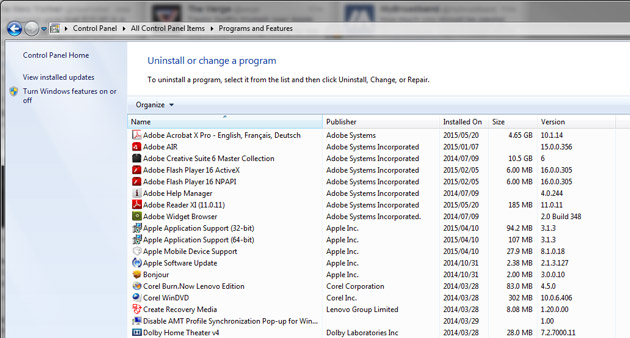
Control Panel
Step 3: Remove from your Internet browsers
Note: Before resetting your browsers, make sure all bookmarks, passwords, add-ons, and other relevant information is saved or recorded.
Internet Explorer
Open IE and press the Alt key to reveal the Tools menu button at the top of the browser. Click on Tools and select Internet Options from the drop-down menu (it is at the bottom of the menu).
An Internet Options window will open – click on the General tab and look at the Home Page text box – you will see www.delta-search.com / www.delta-homes.com.
Delete this text and replace it with the desired URL: www.google.co.za, or www.mybroadband.co.za, for example. Click on Apply and then OK, and restart your browser.

Internet Explorer
You will also need to remove the infection from IE’s add-ons.
Once again access the Tools menu and go into Internet Options. Select the Programs tab in the Internet Options window and then click on the Manage Add-ons button.
A “Manage Add-ons” window will open, in which you must disable the Delta Search add-on. Do this by selecting Delta Search in the add-ons list, and clicking the Disable button on the bottom-right of the menu.
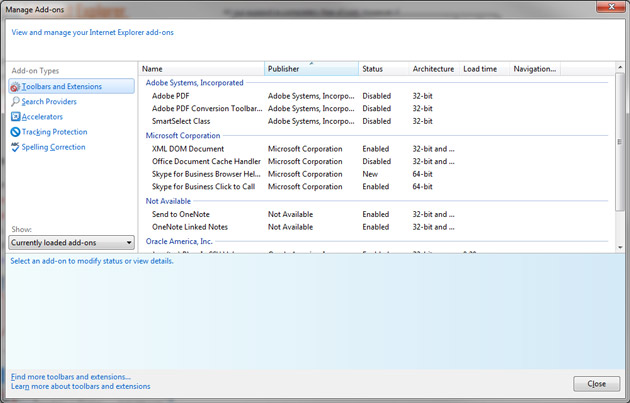
IE Add-ons
Once you have done this, you must reset your browser.
Go into the Tools menu again and select Internet Options. Click on the Advanced tab at the top of the window, then look for the Reset button near the bottom – click on it.
A window will pop up – check the “Delete personal settings” box and then click reset. IE will be restored to its default settings.
Another popup titled “complete all the tasks” will appear – click close.

IE Reset
Google Chrome
Open Chrome and click on the Options icon at the top-right (the icon it is three horizontal lines above one another) – once open, select Settings from the drop-down menu.
Once on the Settings page, look for the “On startup” section, and click on the “Set pages” text next to “Open a specific page or set of pages”.
A window will open with your startup pages. Delete the Delta-search URLs and click OK.

Chrome
On the same settings page, access the “Manage search engines” option under the Search section.
Make sure only Google.com – or your preferred search engine – is made the default engine, and all unwanted search engines are removed.

Chrome
You will also have to remove infected extensions from Chrome. To do this, access the the Settings page as before.
At the top left of the page find the Extensions label and click on it. Once in the Extensions menu, delete the Delta-homes extension by clicking on the recycle bin icon located on the right of its bar.

Chrome
Once you have done this, reset Chrome to its default settings. To do this, access the Settings page, click on “Show advanced settings (at the bottom), and scroll down until you find the “Reset settings button”. Proceed with the reset.
Mozilla Firefox
Access the Options menu by opening Firefox, pressing the Alt key, and selecting Tools from the menu bar at the top of the browser. This will open a drop-down menu, with Options at the bottom of it.
Click on Options, which will open a settings page. On this page, select the General tab and look for the section titled Startup. In this section there is a text box with the heading Home Page.
Remove Delta-homes and replace it with Google.com, for example, in the Home Page text box, click on apply, then close. Restart your browser.
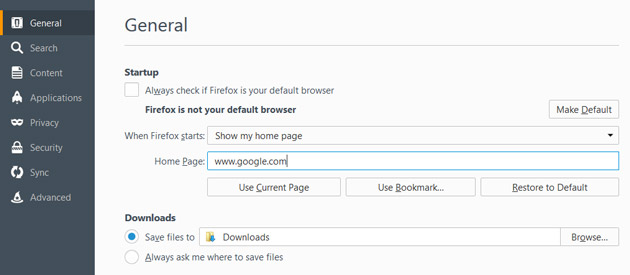
Firefox
The infection is also in Firefox’s add-ons.
Access the Tools drop-down menu as before, and select the “Add-ons” option from the drop-down menu. This will open an Add-ons page – click the Extensions option on the left side of the page, which will then show you installed add-ons.
Remove/Disable Delta-homes from the add-ons by selecting it and clicking on the Disable button the the right of its bar.
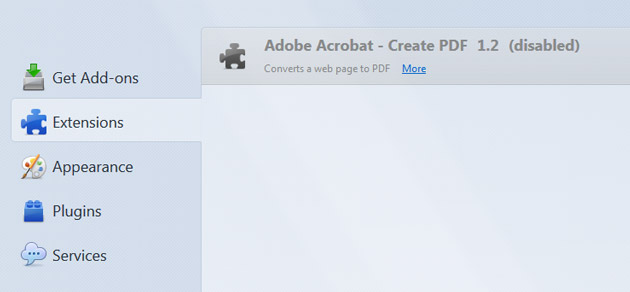
Firefox
You must now Refresh Firefox. Press Alt to access the menu bar, then select Help. This will open a drop-down menu, after which you must select Troubleshooting Information.
This will open a page with a Refresh Firefox button on the top right. Click on it, and refresh Firefox – this will restore the browser to its default settings.
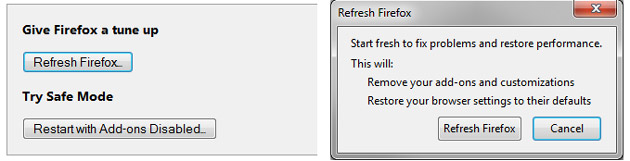
Firefox
Step 4: Remove from the Registry
To remove Delta-homes from the Registry, you must first access the Run box. Do this by pressing the “Windows” key and “R” key.
In the Run box, type “regedit”, and click OK. You may be presented with a user account control window asking permission to make changes to the PC – select yes.
In the Registry Editor window, select the Edit tab at the top, and click on the Find option from the drop-down menu.
In the Find text box, type “search.Delta Search” and click on Find Next. The search will highlight values which have Delta-homes/Delta Search in them.
You must then delete the Registry Key/Value/Value-Data if any of them contain “search.Delta Search.com”. Do not delete the complete value data, just the “search.Delta Search.com” path.
Press F3 to find the “Next” string each time you are done.

Registry
Step 5: Remove from Autorun Tasks
Open the Windows Start menu, right click Computer, and then left click on Manage from the menu which pops up.
A Computer Management window will open – click on the Task Scheduler on the left side of the menu, and then Task Scheduler Library which then appears below it.
Delete all tasks which contain Delta Search by selecting them and clicking the Delete option at the bottom-right of the window.
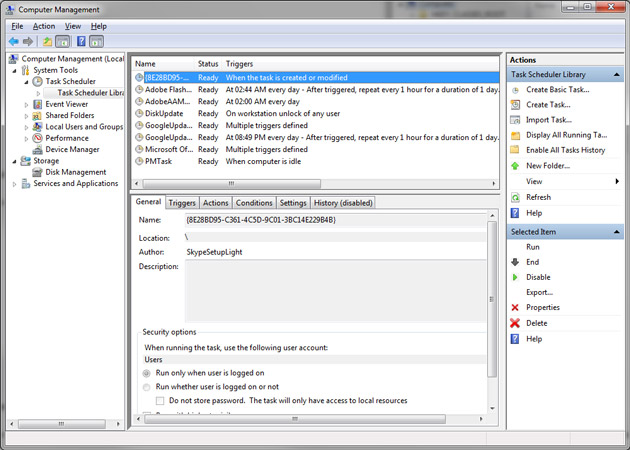
Computer Management
Step 6: Remove from Startup
Press the “Windows” key and “R” key to open the Run box. Type “msconfig” into the text field, and click OK.
A System Configuration window will open – click on the Startup tab along the top.
A menu will appear with multiple entries – click on the entries containing Delta Search and uncheck the tick box on the left side. Click Apply, then click OK.
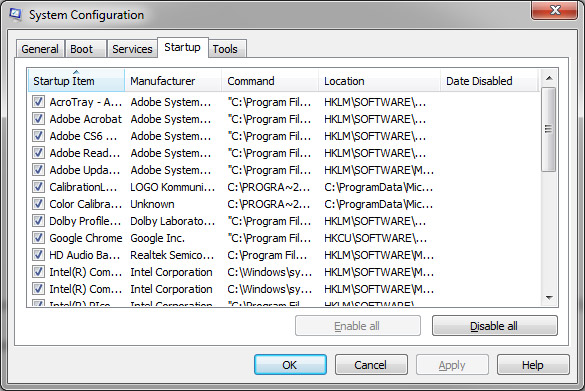
System Configuration
Step 7: Remove from Services
Open the Run box again, type in “msconfig”, and click OK. In the System Configuration menu click on the Services tab.
Once in the Services window, check the “Hide all Microsoft services” box before looking for services which contain Delta Search.
Uncheck all the services with the Delta-homes/Search text string, then click on Apply, followed by OK.
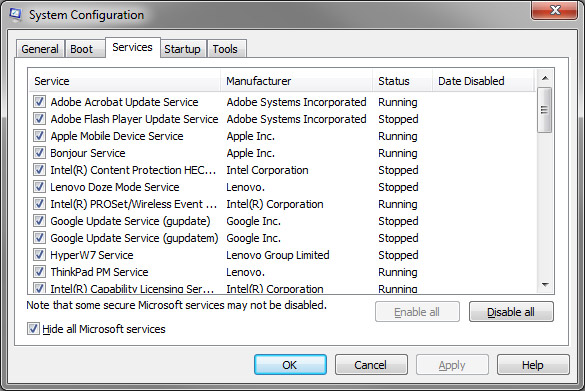
Sytem Configuration
Get some protection
Once you have completed the manual removal, you should install malware/adware protection software.
Of the websites we visited, Malwarebytes and Adwcleaner were recommended to keep malware and freeware off your PC. A 1-year subscription to Malwarebytes, which covers three PCs, was R325 at the time of writing.
Once purchased and installed, scan your computer with the malware tool and remove all malware/adware.
We purchased and installed Malwarebytes, which has kept our systems clean since the incident – stopping multiple “attacks” from sites and software, including Skype.
And that should take care of Delta-homes.
More on spyware, malware
NSA injected spyware into your hard drive: report
Did SA government blow €2-million on spyware?
Adware or Malware – what is Lenovo pushing?


 Loading ...