DominionZA
Executive Member
My configuration
HP Microserver N40L with 5 * 2TB drives in Raid Z configuration.
I originally had SABnzbd, Sickbeard and Headphones on my Windows Core2Duo machine and my HP MS was just a NAS box.
Tonight I decided to make time to setup the plugin architecture in FreeNAS 8.3 and get my HP MS to do all the work. The Core2Duo can finally be laid to rest (well I will use it for something else )
)
I am sharing this guide with you guys in the hopes it helps someone else. It was a bit of a challenge gathering all the information and putting it together to end up with an awesome solution.
This guide was done for my setup and configuration. You should find it easy to adapt to your configuration and to also handle torrents etc... If I have made any mistakes, please let me know and I will correct.
----------- GUIDE START -----------
Overview of setup
Assumptions
1. Install Plugin Jail and start it
2. Install all plugins and start them
3. Create folder /mnt/Volume1/SABNZBD
We need a folder that is accessable to all plugins to handle post processing.
4. Create folders for each plugin under /. Make a SABZNBD and Movies | TVShows |Music
Each of our plugins need access to their respective Movie | TVShow | Music folder.
Each of our plugins also need access to the SABNZBD downloads folder for post processing (or polling)
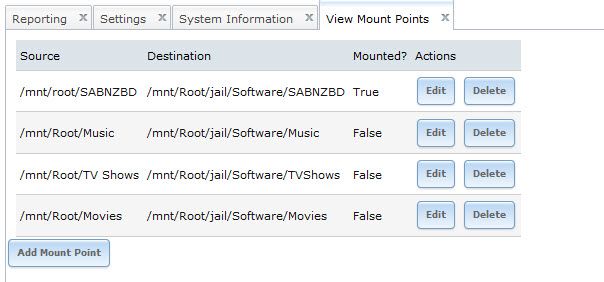
5. Create mount points
For the plugins to be able to gain access to your main media folders and to SABNZBD we need to create mount points.
6. Login to each of the plugin via the web and configure.
Now we need to access each of our web GUI's and configure. The hard work is over. The fun starts.
I like SABNZB on port 8080, Sickbeard on 8081, Couchpotato on 8082 and Headphones on 8083. Modify as you see fit.
SABNZBD Configuration
Host: http://192.168.1.9:8080
Complete initial setup then access the Web GUI and click "Config"
Sickbeard Configuration
Host: http://192.168.1.9:8081
Couchpotato Configuration
Host: http://192.168.1.9:5050 (we will be changing this port to 8082)
Complete initial configuration
Headphones Configuration
Host: http://192.168.1.9:8181 (we will be change this port to 8083)
----------- GUIDE END -----------
I hope this helps someone. It sure helped me. My little N40L is being put to extremely good use now.
HP Microserver N40L with 5 * 2TB drives in Raid Z configuration.
I originally had SABnzbd, Sickbeard and Headphones on my Windows Core2Duo machine and my HP MS was just a NAS box.
Tonight I decided to make time to setup the plugin architecture in FreeNAS 8.3 and get my HP MS to do all the work. The Core2Duo can finally be laid to rest (well I will use it for something else
)I am sharing this guide with you guys in the hopes it helps someone else. It was a bit of a challenge gathering all the information and putting it together to end up with an awesome solution.
This guide was done for my setup and configuration. You should find it easy to adapt to your configuration and to also handle torrents etc... If I have made any mistakes, please let me know and I will correct.
----------- GUIDE START -----------
Overview of setup
- Install Jail and start it
- Install all plugins and start them
- Create folder /mnt/Volume1/SABNZBD
- Create folders for each plugin under /usr/pbi/<Plugin Name>/data. Make a SABZNBD and Movies/TVShows/Music
- Create mount points
- Login to each of the plugin via the web and configure.
Assumptions
- You are running FreeNAS 8.2 or 8.3. I am currently on 8.3 RC1 but this should work on 8.2. Upgrade if you are unsure.
- My FreeNAS mount is /mnt/Volume1. Wherever you see Volume1, substitute it for your volume name.
- I have the folders Movies, TVShows and Music each created directly under /mnt/Volume1 and contain the actual media. Ex: /mnt/Volume1/Movies, /mnt/Volume1/Music, etc..
- I don't use SABNZBD for the post processing. It just downloads and puts the content in respective category folders. The plugins will watch for completed downloads and handle them.
1. Install Plugin Jail and start it
- Create two ZFS datasets called "jail" and "software". Jail is for the plugins themselves, and software is for the installed software.
- Select "FreeNAS / Storage / Volumes / Create ZFS Dataset"
Dataset Name: "jail"
Leave the rest as default unless you feel like tweaking. - Repeat step 2 except make the Dataset Name "software"
- Download the plugins_jail for your architecture
http://sourceforge.net/projects/fre...eeNAS-8.3.0-RC1-x64.Plugins_Jail.pbi/download - Install the plugin.
FreeNAS / Services / Plugins / Management / Settings
Plugins Jail Path: /mnt/Volume1/jail
Jail Name: software
Jail IP Address: 192.168.1.9 (You must allocate an IP on your network for this - and it must be unique)
Jail IP Netmask: /24 (255.255.255.0) (adapt this for your own network)
Plugins Archive Path: /mnt/Volume1/software - Click "Upload Jail PBI"
- Select the PBI you downloaded in step 4 above and upload it.
- Start the Plugins service
FreeNAS / Services / Control Services / Plugins. - If all went well you will have the plugins jail installed and running.
2. Install all plugins and start them
- Download plugins you want from http://freenas.synergames.com//browse.php?action=browse&userid=7&folder=amd64
- Install plugins from FreeNAS / Services / Control Services / Install Plugin.
Select the plugins you downloaded in step 1 and select Upload. - Start them each. Sometimes they can take a while to start so be patient.
3. Create folder /mnt/Volume1/SABNZBD
We need a folder that is accessable to all plugins to handle post processing.
- Access your volume via windows explorer (or whatever you use) and create the folder /mnt/Volume1/SABNZBD
4. Create folders for each plugin under /. Make a SABZNBD and Movies | TVShows |Music
Each of our plugins need access to their respective Movie | TVShow | Music folder.
Each of our plugins also need access to the SABNZBD downloads folder for post processing (or polling)
- Open a shell window
FreeNAS / Shell - Type "jls" to identify the Jail ID of our "software" dataset.
You will be presented with a list of records. Look for hostname "software" and take note of it's JID.
Mine is JID 1 - Type "jexec 1 csh" where 1 is the JID from step 2.
Your prompt will change to "software#" - To get a list of your plugins, type "ls /usr/pbi".
You will see a list of your plugins. The ones I am interested in for this are sabnzbd-amd64, sickbeard-amd64 and couchpotato-amd64. - Create the folders we need. Remember we need for respective media and each one needs SABNZBD.
Type the following commands
mkdir /SABNZBD
mkdir /TVShows
mkdir /Movies
mkdir /Music
5. Create mount points
For the plugins to be able to gain access to your main media folders and to SABNZBD we need to create mount points.
- Go to FreeNAS / Services / Control Services and select "View Mount Points".
You can also do this from FreeNAS / Services / Plugins / Management / Mount Points. - Select "Add Mount Point" Repeat this step for the following.
Source: /mnt/Volume1/SABNZBD
Destination: /SABNZBD
Source: /mnt/Volume1/Music
Destination: /Music
Source: /mnt/Volume1/TV Shows
Destination: /TVShows
Source: /mnt/Volume1/Movies
Destination: /Movies
6. Login to each of the plugin via the web and configure.
Now we need to access each of our web GUI's and configure. The hard work is over. The fun starts.
I like SABNZB on port 8080, Sickbeard on 8081, Couchpotato on 8082 and Headphones on 8083. Modify as you see fit.
SABNZBD Configuration
Host: http://192.168.1.9:8080
Complete initial setup then access the Web GUI and click "Config"
- Click "General"
SABNZBD Port: 8080
Configure anything you think you may need here. I pretty much leave it all default except I create a username and password. - Click "Folders"
Temporary Download Folder: /SABZNBD/Incomplete
Completed Download Folder: /SABZNBD/Complete
Watched Folder: /SABZNBD/Watch
- Click "Categories" - This is a very important config to make to integrate with the plugins.
The plugins will instruct SABNZBD to place the completed downloads in their respective folders. The plugins will then "watch" these folders and post process them when done - placing them in their correct homes.
Add the following 3 categories
Category: movies
Folder/Path: /Movies
Category: tv
Folder/Path: /TVShows
Category: music
Folder: /Music - Those are the basics for SABNZBD. Don't forget to setup your Servers and Index Sites.
Sickbeard Configuration
Host: http://192.168.1.9:8081
- Click "Config / General"
Set a username and password if you wish (advised) and enable API Key. - Click "Config / Search Settings"
Tick "Seach NZB's"
NZB Method: SABnzbd
SABnzbd URL: http://localhost:8080/
Set SABnzbd Username and Password if you configured it in SABNZBD configuration above.
Set SABnzbd API Key.
SABnzbd Category: tv - Click "Config / Post Processing"
TV Download Dir: /SABNZBD/Complete/TVShows - Setup everything else as you require.
Couchpotato Configuration
Host: http://192.168.1.9:5050 (we will be changing this port to 8082)
Complete initial configuration
- Click Settings (top right gear icon) / General.
Set username and password if required (advised)
Port: 8082 - Click Settings / Downloaders
Tick SABNZBD
Set host and API Key
Category: movies - Click Settings / Renamer
From: /SABNZBD/Complete/Movies/
To: /Movies/
Set naming to whatever your preference is.
Set subtitles, etc... if you wish.
Headphones Configuration
Host: http://192.168.1.9:8181 (we will be change this port to 8083)
- Click Settings (top right gear icon) / Web Interface
HTTP Port: 8083
Set username and password if you wish (advised)
Tick "Enable API" - Click Settings / Download Settings
SABnzbd Host: http://localhost:8080
SABnzbd Category: music
Configure username, password and API Key
Music Download Directory: /SABNZBD/Music - Click Settings / Quality & Post Processing
Under Post Processing I tick all check boxes. You don't have to. Your choice.
Path to destination folder: /Music
----------- GUIDE END -----------
I hope this helps someone. It sure helped me. My little N40L is being put to extremely good use now.
Last edited:
 Thanks again though!