Windows 11 Support Thread

I have likewise hacked and regedited the living hell out of my install, how it even functions as well as it does I don't know but Explorer has got verrrrrry slow now, often it will take more than a few seconds to show what in a folder, even if I am only just switching to Explorer.

Good tip about the copying the program setting using a copy of the relevant Appdata or Programdata folders for that. I also always clone the drive or make a VHD before a fresh install, there's always some file or setting you need.

Which cloning software do you use?
 
Which cloning software do you use?

Acronis or Paragon and the lastest I use is Macrium, seems to be the fastest. But now even better than an image is making an image that is Virtual compatible like VHD because then you can even boot the image. Which is something I needed the other day when I sold some software and forgot that I hadn’t rendered a few projects, so I switched off the internet booted up the VHD file that still had the activated software loaded and off I went.
 
Acronis or Paragon and the lastest I use is Macrium, seems to be the fastest. But now even better than an image is making an image that is Virtual compatible like VHD because then you can even boot the image. Which is something I needed the other day when I sold some software and forgot that I hadn’t rendered a few projects, so I switched off the internet booted up the VHD file that still had the activated software loaded and off I went.
One more vote for Macrium Reflect Free.
 
This is just a warning, I had a serious problem with Windows 11 yesterday as it gave me a prompt that it cannot log in. I watched a few YouTubes, but noticed that I couldn't get into safe mode at all. So be careful with this one. I got it after the KB5019274 update
 
This is just a warning, I had a serious problem with Windows 11 yesterday as it gave me a prompt that it cannot log in. I watched a few YouTubes, but noticed that I couldn't get into safe mode at all. So be careful with this one. I got it after the KB5019274 update
I tried the two methods. But Win11 made a change to its registry: The Passwordless authentication entry no longer exist on the registry like it does in Win10. Creating it doesn't help. Now the reason why you would need safe mode is to try and delete the Ngc folder as this would have fixed my problem, BUT with safe mode not functioning and command prompt being useless you can't get to the Ngc folder to delete it.

The only solution is a reinstallation. But a reinstallation WILL delete all your software installations, but it keeps all your personnel files, and that is GOOD.because there aren't a lot of ways to recover if you don't have backup.

I think the Passwordless only gets entered into the registry if you enable it in Win11 first. Kind of hard to do if safe mode is not accessible.

Ultimately, if you use win11 to keep meticulous backup, it is not nearly as stable as win10 and win7. The other thing to note if you do a reinstallation is Microsoft Edge is missing as well. So keep a Chrome installer in your downloads or on a thumb drive, you will need it to get onto the net.

The reinstallation does remember router password, but the metered network function is disabled and Win11 starts updating like crazy, so you will have to manually stop it to enable metered connection. Do a restart because even with metered connection on Win11 will ignore it till it is restarted
 
So keep a Chrome installer in your downloads or on a thumb drive, you will need it to get onto the net.
Powershell:
$LocalTempDir = $env:TEMP; $ChromeInstaller = "ChromeInstaller.exe"; (new-object System.Net.WebClient).DownloadFile('http://dl.google.com/chrome/install/375.126/chrome_installer.exe', "$LocalTempDir\$ChromeInstaller"); & "$LocalTempDir\$ChromeInstaller" /silent /install; $Process2Monitor = "ChromeInstaller"; Do { $ProcessesFound = Get-Process | ?{$Process2Monitor -contains $_.Name} | Select-Object -ExpandProperty Name; If ($ProcessesFound) { "Still running: $($ProcessesFound -join ', ')" | Write-Host; Start-Sleep -Seconds 2 } else { rm "$LocalTempDir\$ChromeInstaller" -ErrorAction SilentlyContinue -Verbose } } Until (!$ProcessesFound)
 
I tried the two methods. But Win11 made a change to its registry: The Passwordless authentication entry no longer exist on the registry like it does in Win10. Creating it doesn't help. Now the reason why you would need safe mode is to try and delete the Ngc folder as this would have fixed my problem, BUT with safe mode not functioning and command prompt being useless you can't get to the Ngc folder to delete it.

The only solution is a reinstallation. But a reinstallation WILL delete all your software installations, but it keeps all your personnel files, and that is GOOD.because there aren't a lot of ways to recover if you don't have backup.

I think the Passwordless only gets entered into the registry if you enable it in Win11 first. Kind of hard to do if safe mode is not accessible.

Ultimately, if you use win11 to keep meticulous backup, it is not nearly as stable as win10 and win7. The other thing to note if you do a reinstallation is Microsoft Edge is missing as well. So keep a Chrome installer in your downloads or on a thumb drive, you will need it to get onto the net.

The reinstallation does remember router password, but the metered network function is disabled and Win11 starts updating like crazy, so you will have to manually stop it to enable metered connection. Do a restart because even with metered connection on Win11 will ignore it till it is restarted
Why not boot with a USB Drive with some tools on it which you can use to access the drive/directory?

EDIT: Hiren's BootCD PE x64 is one of the best.
 
Last edited:
Powershell:
$LocalTempDir = $env:TEMP; $ChromeInstaller = "ChromeInstaller.exe"; (new-object System.Net.WebClient).DownloadFile('http://dl.google.com/chrome/install/375.126/chrome_installer.exe', "$LocalTempDir\$ChromeInstaller"); & "$LocalTempDir\$ChromeInstaller" /silent /install; $Process2Monitor = "ChromeInstaller"; Do { $ProcessesFound = Get-Process | ?{$Process2Monitor -contains $_.Name} | Select-Object -ExpandProperty Name; If ($ProcessesFound) { "Still running: $($ProcessesFound -join ', ')" | Write-Host; Start-Sleep -Seconds 2 } else { rm "$LocalTempDir\$ChromeInstaller" -ErrorAction SilentlyContinue -Verbose } } Until (!$ProcessesFound)
Chrome?! You mean the buggy 3rd party release of Edge full of memory leaks?
 

How to Upgrade to Windows 11 22H2 on Unsupported Hardware - MUO​

Skip Windows 11 22H2's hardware checks with this guide.

1675918356416.png

If you have installed Windows 11 on unsupported hardware, the upgrade process will be a tough task.

When you try to look for an update, Windows 11 shows everything as up to date and has no option to install the 22H2 version.

While you can use the ISO-based clean install method, the upgrade process lets you install the latest version without deleting your apps and other data.

Here’s how to upgrade to Windows 11 22H2 on unsupported hardware using the Windows 11 setup file.


How to Perform an In-Place Upgrade in Windows 11 - MUO​

Want to reset Windows 11 without fully resetting Windows 11? Save your files with an in-place upgrade.

1676472038440.png

Microsoft offers the option to repair or reset your Windows PC from Windows 8 onwards. Before that, you needed an installation media (DVD or USB) to format your system.

But what if you don’t want to create an installation media and wipe out everything on your system just to upgrade to a newer Windows version? Well, that’s where Microsoft’s in-place upgrade can help you.

We will elaborate on what exactly is an in-place upgrade and how it differs from a clean installation of Windows 11. Moreover, you will learn about the detailed method to perform the upgrade if the need arises.


Windows 11 Slapping a Watermark on 'Unsupported' PCs - Gizmodo​

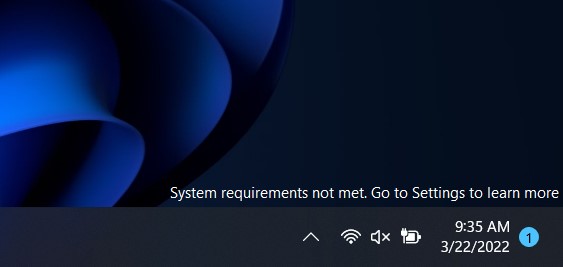
The latest patch adds a persistent watermark to the desktop, reminding you that your system doesn't meet the OS' official requirements.

requirements-not-met.jpg


Did you force your PC to install Windows 11 despite it not meeting the official requirements? (Why?) Microsoft might start nagging you for doing that—or at least reminding you that what you’ve done is against the intended use of its operating system.

The January 2023 Windows 11 update is pestering folks who forced the update on their PCs with a persistent watermark on the desktop warning that system requirements haven’t been met.

The watermark says “system requirements not met” and is emblazoned on the desktop’s lower right hand corner if the operating system notices that it’s running on hardware that doesn’t meet the minimum requirements.

It’s possible the culprit is the dedicated security processor, or TPM 2.0 (Trusted Platform Module) chip, used by services like BitLocker and Windows Hello. Microsoft requires this module before upgrading. It’s why many PCs were rendered un-upgradeable when Windows 11 was announced.

Most new CPUs and motherboards have capability for it built into them, but the feature wasn’t a guaranteed inclusion prior to the Windows 11 launch.

But some users don’t care, and can you blame them? Getting a new PC to upgrade to a specific operating system seems egregious in this day and age of extreme penny-pinching and coupon-clipping.

And since the Windows community has long been self-sufficient, it’s managed to figure out how to force a Windows 11 upgrade onto a PC despite it not having supported hardware.

If you are pushing through to Windows 11 even though your system isn’t technically compatible, there’s a way to remove the shameful messaging living on your desktop.

Back in December, a Microsoft Independent Advisor suggested what many other how-to pages do: change the registry file so that Windows thinks everything is kosher. Note that this has its downsides, like voiding the software warranty on your machine.


Windows 11 is being offered to unsupported PCs that don't meet minimum requirements - Windows Central​

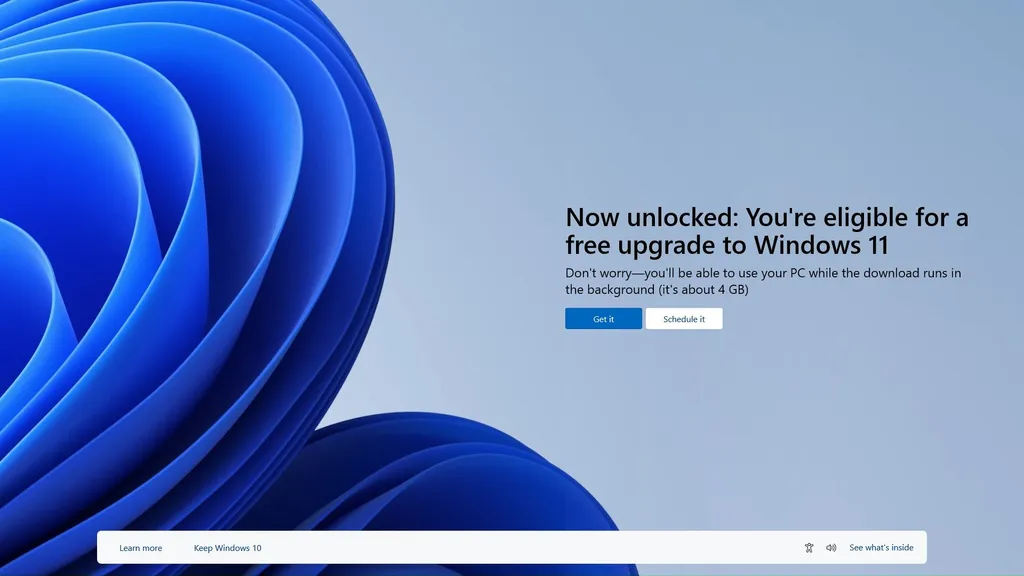
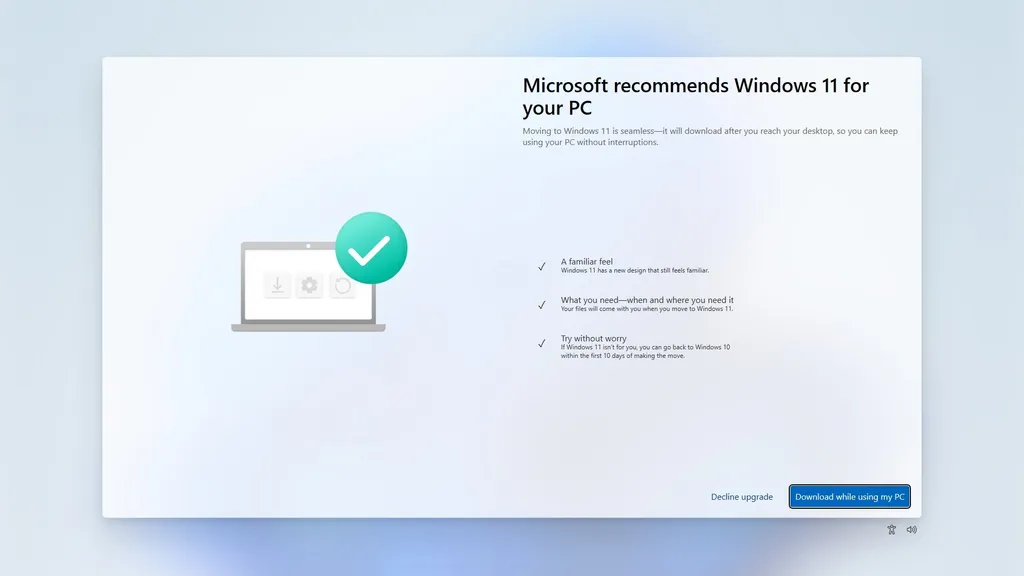
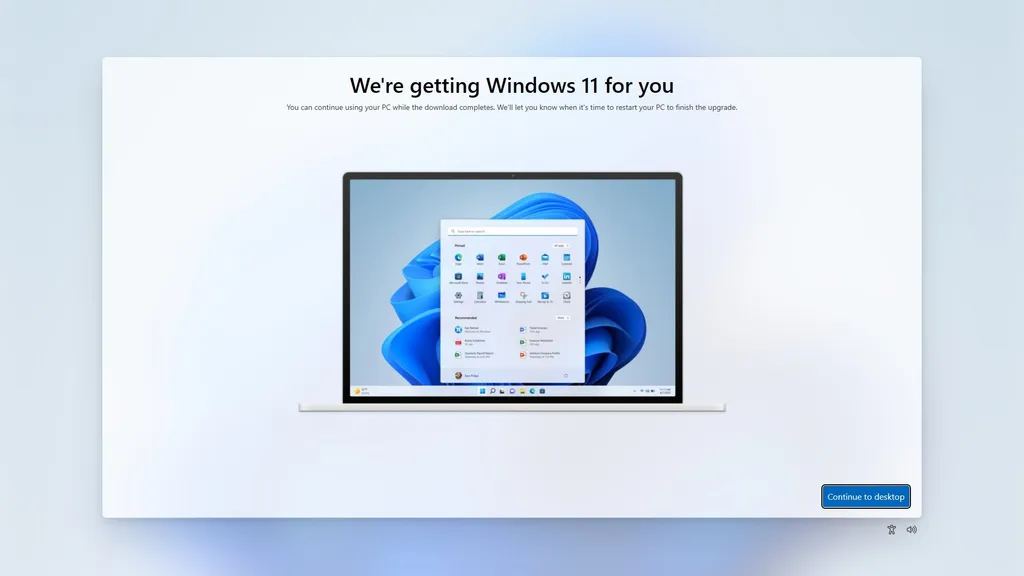
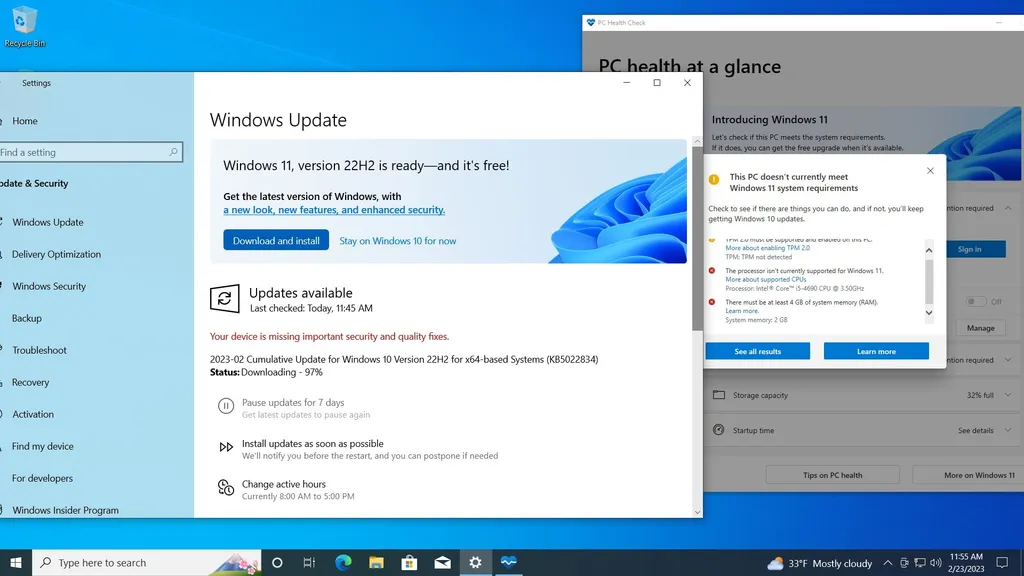
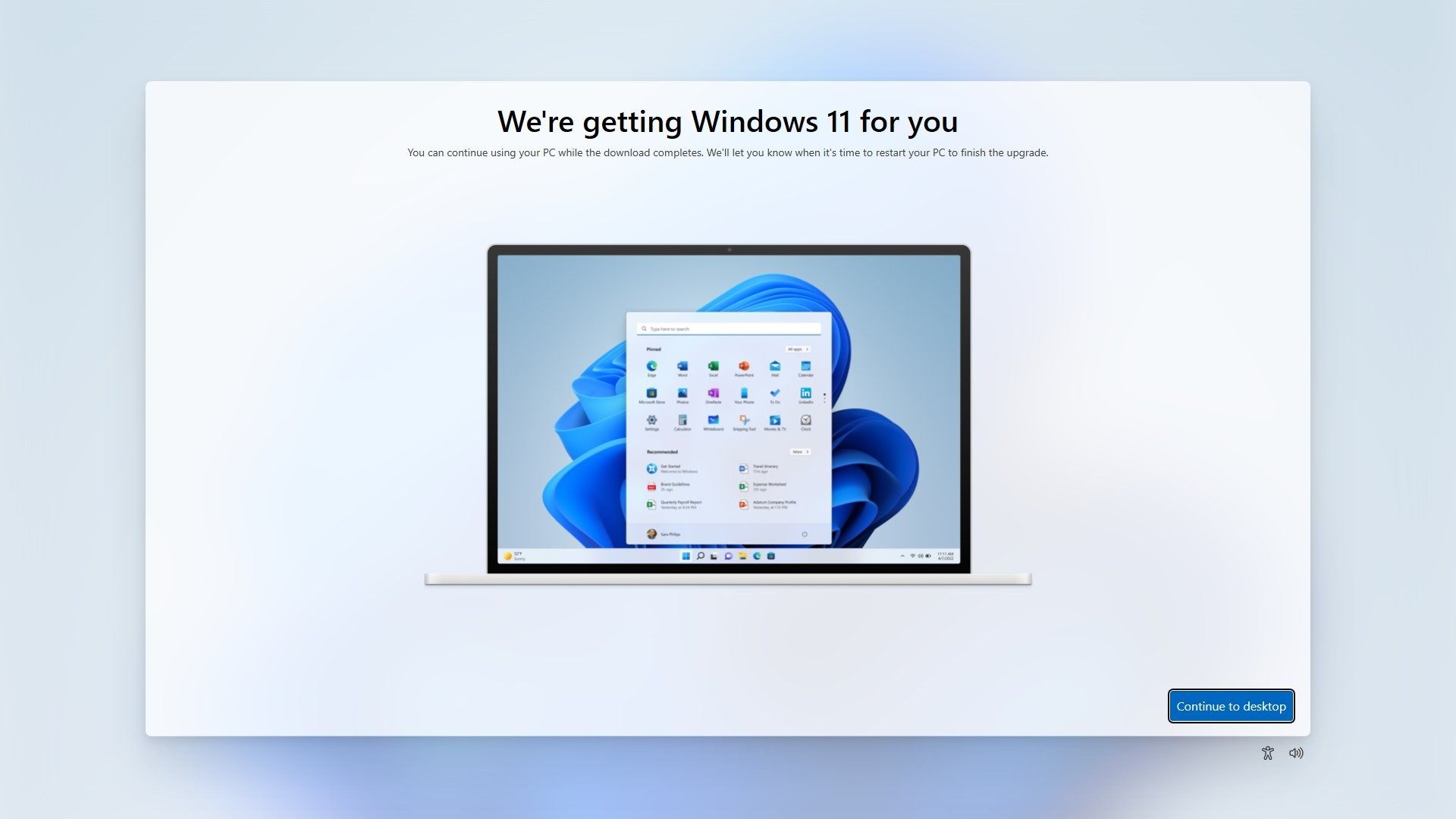
An update to Windows 11 will be offered but won't install on unsupported PCs.

ikY3NRGxYMBd2wyZrmBN7n-1024-80.jpg.webp


eWp3KvKGX7DvdcwfehR7Dn-1024-80.jpg.webp


QRiP25v6G7V2TiXEhfkiGn-1024-80.jpg.webp


nXEjnvJqLCb3VMwqZTf52n-1024-80.jpg.webp


What you need to know​

  • Windows 11 is being offered to unsupported PCs that do not meet the minimum requirements of the operating system.
  • Several posts mention upgrade prompts appearing on older PCs, including models up to ten years old.
  • Following the prompts on an unsupported PC fails to install Windows 11, at least based on what we've seen online.
Link to full article below:


The next big Windows 11 feature drop is imminent, here's everything that's new - Windows Central​

Windows 11's 'Moment 2' feature drop is coming in March. Here's what you need to know.

UsYxGPC6eFnVyC7C3weAtj-1024-80.jpg.webp


With the launch of Windows 11 version 22H2, Microsoft announced that it would begin updating the Windows OS with new features on a regular basis, outside of the annual Windows feature update in the fall.

The first feature drop arrived just a month after 22H2 launched, and included tabs in File Explorer and other improvements.

Now, we're fast approaching the second feature drop for Windows 11 version 22H2, which has been finalized internally and is expected to begin rolling out in the next handful of weeks.

This second feature drop, also known as "Moment 2" internally, has been in testing with Windows Insiders in the Beta Channel for a number of months already.

In fact, the contents of the Moment 2 update just went to testers in the Insider Release Preview channel this week, meaning Microsoft is gearing up to ship this next feature drop soon.

So, here's a run rundown of all the new features and enhancements coming with the Windows 11 Moment 2 feature drop.

Link to full article below:


Windows 11 is being offered to unsupported PCs that don't meet minimum requirements - Windows Central​

An update to Windows 11 will be offered but won't install on unsupported PCs.

ikY3NRGxYMBd2wyZrmBN7n-1024-80.jpg.webp


eWp3KvKGX7DvdcwfehR7Dn-1024-80.jpg.webp


QRiP25v6G7V2TiXEhfkiGn-1024-80.jpg.webp


nXEjnvJqLCb3VMwqZTf52n-1024-80.jpg.webp


What you need to know​

  • Windows 11 is being offered to unsupported PCs that do not meet the minimum requirements of the operating system.
  • Several posts mention upgrade prompts appearing on older PCs, including models up to ten years old.
  • Following the prompts on an unsupported PC fails to install Windows 11, at least based on what we've seen online.
Link to full article below:


Top
Sign up to the MyBroadband newsletter
X