Internet Privacy / Encrypting your emails on mobile (Android) and Desktop (Linux)

jnz_00006D65

Member
Joined
Jan 12, 2014
Messages
22
Reaction score
1
Internet Privacy / Encrypting Emails on mobile (Android) and Desktop (Linux/Windows)

Skip to 2nd post for the meat and potatoes. This is just a short intro to online privacy.

Mark Zuckerberg said that "the age of privacy is over". After a wave of Facebook privacy rollbacks he also said that "we decided that these would be the social norms now." In a case against Google for scanning our emails in order to serve us personalised ads, they argued that "all users of email must necessarily expect that their emails will be subject to automated processing." Wrong. People are waking up. Even those who used to argue along the lines of "I don't care because I have nothing to hide" are starting to see the bigger picture.

As people are becoming more aware of the privacy issues we face today on the world wide web and realise that sending an email is about as private as sending a postcard, the need to keep sensitive personal or business related conversations hidden from prying eyes is becoming a priority. It's not a seemless integration for every messaging client yet, but it's getting there. In the not too distant future, the requirement for online messaging clients and social networks to automagically encrypt data with the sender/recipient key, will be self-evident.

For now, it can be manually integrated, turned on or off, and used only between a sender and recipient who both use the technology.

For the business there are many services available for integrating email encryption locally or in the cloud. These are not always viable for smaller businesses and definitely too expensive and impractical for the individual.

From a developer's point of view, it has always been very clear that people just want their stuff to work. They don't want to go digging in the terminal typing lengthy commands or go through tedious configurations just to get a message across to someone. Unfortunately it is not so straight forward yet on all platforms. Some applications integrate seemlessly with GnuPG, others don't and need some simple configuration done or plugin installed. Nothing too serious, though.

Many people who might use this information to implement encryption on their own system, might find that they never really use it, mainly because none of their contacts do. This is a gap auto encryption will fill in the future. For others, though, a real need exists for keeping specific communications private, and should hopefully find the information in these posts at least a tiny bit helpful.

Whatever your interest in the topic, if you can see the need for internet privacy, it might be wise to at least familiarise yourself with the basic workings of email encryption.

Something to look out for, is the upcoming startmail service from the creators of startpage private search engine. Startmail will fully support encryption and secure, private mail delivery. They're currently in beta public testing stage. We can expect to see many similar services to appear after recent NSA revelations.

So let's encrypt some emails!

1. Creating and backing up your private/public keys
2. Integrating with your mail client on Linux desktop
3. Integrating with your mail client on Windows desktop
4. Integrating with Android apps

Commands in codeblocks are in bold.
 
Last edited:
Instructions for Windows follows below this.

On Linux:

Creating and backing up your keys

Although there are many front-ends (gui) available on linux, I will demonstrate using the terminal for the first section of generating pairs and installing gpg, as it is more or less consistent across distro's and variants.

GnuPG comes preinstalled on most linux based systems and many applications depend on it. If for some reason though, you get a No command 'gpg' found, you have to install gpg first, before continuing to the key creation section. To test, open terminal and type gpg.

To install on Debian based OS (Debian/Ubuntu/Linux Mint):
Code:
user@host ~ $ [B]sudo apt-get install gpg[/B]

On CentOS
Code:
user@host ~ $ [B]sudo yum install gpg[/B]

On Arch Linux
Code:
user@host ~ $ [B]sudo pacman -S gpg[/B]

OK, so let's first see if we have any existing keys.

To view all public keys from our public keyring:
Code:
user@host ~ $ [B]gpg --list-keys[/B]
gpg: keyring /home/user/.gnupg/pubring.gpg created

OK, nothing listed, so that means we can go ahead and create a key pair.
If you see your email address in the output, you already have a key pair and you can skip ahead to integrating with your email client.

Let's create a key pair for ourself.
Code:
user@host ~ $[B] gpg --gen-key[/B]
gpg (GnuPG) 1.4.12; Copyright (C) 2012 Free Software Foundation, Inc.
This is free software: you are free to change and redistribute it.
There is NO WARRANTY, to the extent permitted by law.

Please select what kind of key you want:
   (1) RSA and RSA (default)
   (2) DSA and Elgamal
   (3) DSA (sign only)
   (4) RSA (sign only)
Your selection? 1

Here we'll go with RSA for signing AND encrypting. All of these choices have pro's and cons. Which one you decide to use is entirely up to you. You probably need to do some research of your own here as it is way beyond the scope of this howto and will take thousands of posts to explain it all. It's quite the rabbit hole. For a very quick overview, you can read this info piece below if you want, otherwise just accept the fact that they're all very secure.(muahahaha)

Quick Info on keys:
When you generate key pairs you are given the following options:
(1) RSA and RSA (default)
(2) DSA and Elgamal
(3) DSA (sign only)
(4) RSA (sign only)

Generally you would want to generate keys for both signing and encrypting, so your choice will be either 1 or 2. RSA and RSA means that RSA and its underlying algoritms and methods will be used for signing and also encrypting stuff. DSA and Elgamal means that DSA will be used for signing, and Elgamal for encryption. RSA is just more commonly used. Both have their strengths and weaknesses.

Almost anything can be signed or encrypted. Files, text, emails and so on.

Scenario: You want to send a file to Kallie, and your only concern is that the actual file that you created, not some other phony file injected by a crazy hacker, reaches Kallie. You don't care about who reads the contents, just as long as Kallie receives the correct information. In this case you will only sign the message, not encrypt it, using your signing key. Kallie has your public key in his public key ring and upon receiving the file, he can verify your signature to determine if the file in fact did come from you and has not been tampered with in any way since you signed it.

Scenario: You found a way of accurately predicting next week's lottery numbers and decided to share it with your gran. You write down the instructions in large times new roman letters in an email, encrypt the message using your gramma's public key, which you already have on your key ring, and send it off. If Johnny next door intercepts your wifi packets through man-in-the-middle attack, opens your email, he'll be greeted with a bunch of random unreadable gibberish, fail. Gramma receives your email, decrypts it with her private key using her secret passphrase, reads the instructions, profits. Keep in mind that after the message has been encrypted, it can only be decrypted by the owner of that public key, not you, not grandpa.

So we chose option 1 (RSA and RSA).

EDIT: Before choosing, read this

Next question:
Code:
RSA keys may be between 1024 and 4096 bits long.
What keysize do you want? (2048)

The value in parenthesis is the default, just hitting enter without specifying anything will select this value.

Now obviously you understand that the higher this number, the more secure. For every extra bit you add, it could potentially take an attacker using a bruteforce attack, an extra few thousand years to decrypt. But the higer you go, the longer it would take to decrypt or encrypt large files. These days processing power is good enough to use 4096 bit encryption for most everyday scenarios.

So choose anyting you want. I'm gona go with 4096.

Code:
Please specify how long the key should be valid.
         0 = key does not expire
      <n>  = key expires in n days
      <n>w = key expires in n weeks
      <n>m = key expires in n months
      <n>y = key expires in n years
Key is valid for? (0)

There are situations where one would only want to use keys once or twice then let it expire. But we'll just hit enter for key to never expire. Later we will generate a revocation certificate in case our key is compromised. Go ahead, hit enter and verify your answer with a y.
Code:
Key does not expire at all
Is this correct? (y/N) [B]y[/B]

OK, verified. Now enter your real name, email address and optional comment. Confirm with O if you're happy, or the other options to go back and change something.

Code:
You need a user ID to identify your key; the software constructs the user ID
from the Real Name, Comment and Email Address in this form:
    "Heinrich Heine (Der Dichter) <[email protected]>"

Real name: T-1000
Email address: [email protected]
Comment: I'll be back
You selected this USER-ID:
    "T-1000 (I'll be back) <[email protected]>"

Change (N)ame, (C)omment, (E)mail or (O)kay/(Q)uit? [B]o[/B]
You need a Passphrase to protect your secret key.

Type in your passphrase. Make it long and strong. Use all sorts of weird characters and numbers. You know, something you will never forget. Then retype it. :)

Next you will be asked to do random stuff on your computer in order generate more entropy for your key. So type random keys, move the mouse, open and close the CD tray, let the cat walk around on your keyboard, open an email, copy a file, create another useless android app, and so on. This will take about a minute or so and your key will be generated:

Code:
We need to generate a lot of random bytes. It is a good idea to perform
some other action (type on the keyboard, move the mouse, utilize the
disks) during the prime generation; this gives the random number
generator a better chance to gain enough entropy.
.......+++++
.........+++++
We need to generate a lot of random bytes. It is a good idea to perform
some other action (type on the keyboard, move the mouse, utilize the
disks) during the prime generation; this gives the random number
generator a better chance to gain enough entropy.

Not enough random bytes available.  Please do some other work to give
the OS a chance to collect more entropy! (Need 239 more bytes)
daing!!! lwfweajfhiwhgfipwaer .......................................+++++
....+++++
gpg: key 73235F37 marked as ultimately trusted
public and secret key created and signed.

gpg: checking the trustdb
gpg: 3 marginal(s) needed, 1 complete(s) needed, PGP trust model
gpg: depth: 0  valid:   2  signed:   0  trust: 0-, 0q, 0n, 0m, 0f, 2u
pub   4096R/73235F37 2014-01-15
      Key fingerprint = 63CC 5E7C 4A51 9625 F240  3344 67A9 817A 7323 5F37
uid                  T-1000 (I'll be back) <[email protected]>
sub   4096R/FEDFC8EF 2014-01-15

So the above output means that I wasn't being random enough during the key creation but got it right with the second try. The key has been created.

Let's verify:

Code:
user@host ~ $ [B]gpg --list-keys[/B]
/home/user/.gnupg/pubring.gpg
------------------------------
pub   4096R/A1B2C3D4 1970-01-01
uid                  T-1000 (I'll be back) <[email protected]>
sub   4096R/E5F60101 1970-01-01

To view our private keys:
Code:
user@host ~ $ gpg --list-secret-keys
/home/user/.gnupg/secring.gpg
------------------------------
sec   4096R/A1B2C3D4 1970-01-01
uid                  T-1000 (I'll be back) <[email protected]>
ssb   4096R/E5F60101 1970-01-01

Awesome.

Next step: Send your public key to the key servers. If you do this, you do not have to send your public key along with every signed email. People can just automatically get it from the servers. Remember to replace A1B2C3D4 with your key id, in the example that follows.

Send your key:

Code:
user@host ~ $ [B]gpg --send-keys --keyserver pool.sks-keyservers.net A1B2C3D4[/B]
gpg: sending key A1B2C3D4 to hkp server pool.sks-keyservers.net
user@host ~ $

Keys are automatically synchronised across key servers.

(continued on following post)
 
Last edited:
(continued from previous post)

Next step: Generate revocation certificate.

In case your key is ever compromised in any way, a revocation key is generated that will render your keys useless. Remember to replace A1B2C3D4 with your key id, and [email protected] with your information, or watever you would like to call the generated key file, in the example that follows.

Follow the instructions from the command, give a reason, specify your password:

Generate revocation key:

Code:
user@host ~ $ [B]gpg --output [email protected] --gen-revoke A1B2C3D4[/B]

sec  4096R/A1B2C3D4 2014-01-15 T-1000 (I'll be back) <[email protected]>

Create a revocation certificate for this key? (y/N) y
Please select the reason for the revocation:
  0 = No reason specified
  1 = Key has been compromised
  2 = Key is superseded
  3 = Key is no longer used
  Q = Cancel
(Probably you want to select 1 here)
Your decision? [B]0[/B]
Enter an optional description; end it with an empty line:
> [B]In case my brain freezes and my passphrase is lost[/B]
> 
Reason for revocation: No reason specified
In case my brain freezes and my passphrase is lost
Is this okay? (y/N) [B]y[/B]

You need a passphrase to unlock the secret key for
user: "T-1000 (I'll be back) <[email protected]>"
4096-bit RSA key, ID A1B2C3D4, created 2014-01-15

Revocation certificate created.

Please move it to a medium which you can hide away; if Mallory gets
access to this certificate he can use it to make your key unusable.
It is smart to print this certificate and store it away, just in case
your media become unreadable.  But have some caution:  The print system of
your machine might store the data and make it available to others!

A key file called [email protected] has now been created in the same directory from where you executed the command. If you ever import this key file, your keys that we've now generated will be revoked! So be careful when restoring keys! We will back this file up together with our exported keys in the next section.

Next, backing up your keys.

First, let's export our keys, so we can back them up in case things go awry in the future. Specify any filename.key and use your own key id.

Export public key:
Code:
user@host ~ $ [B]gpg -ao [email protected] --export A1B2C3D4[/B]

Export secret/private key:
Code:
user@host ~ $ [B]gpg -ao [email protected] --export-secret-keys A1B2C3D4[/B]

Done. Now we have 3 files:

[email protected] <--- Public key
[email protected] <--- Private key
[email protected] <--- Revocation key

It's best to keep these files on an encrypted usb drive or secure cloud storage. I will not use Drop Box for this. I use Wuala, because there are no keys kept on the server. All files are encrypted locally before uploaded. This part is entirely up to you. This is a possible single point of failure/vulnerability that malicious hackers could exploit, so be careful where you store these files. I would also recommend keeping your revoke keys in a separate folder, to make sure you don't accidently import them during key restoration from backup.

If your keys are ever compromised, import the revocation key to revoke it locally. Then send the revoked keys to the key server to revoke it globally.

To import public and private keys restored from backup:
Code:
user@host ~ $ [B]gpg --import [email protected][/B]

Revoking your keys locally (import revocation key)
Code:
user@host ~ $ [B]gpg --import [email protected][/B]

Revoking globally, after revoking locally:
Code:
user@host ~ $ [B]gpg --send-keys --keyserver pool.sks-keyservers.net A1B2C3D4[/B]
Remember, doing this will render your keys useless!


And, done!

Next, create keys on Windows.
 
Last edited:
On Windows

Creating keys and exporting them for backup

Ok, doing this on XP virtual machine. This should work for any version of Windows, quick and painless.

What you'll need:
Gpg4win - Download from - http://gpg4win.org/

Gpg4Win also includes GpgOL 1.2.0, a plugin for Microsoft Outlook, which we'll cover in a later post.

I'm gona fly through this one, I recommend skimming over the Linux instructions above for some additional info on how this stuff works.

You can use either GNU Privacy Assistant, or Kleopatra Key Manager. They're both included with the Gpg4Win installation. I'll demonstrate using Kleopatra.

Install Gpg4win. From start menu -> All programs/programs -> Gpg4win, open Kleopatra. This is your key manager.

Let's specify a key server first. Click on Settings -> Configure Kleopatra.

Under Directory Services (Should be the first tab opened), for Server Name, enter pool.sks-keyservers.net. Leave the other fields unchanged.
key-servers.jpg

Click OK to save.

To create your key pair/certificate, click on File -> New Certificate..., then Create personal OpenPGP pair:
Create-OpenPGP-key-pair.jpg


Next, fill in your details:
details.jpg


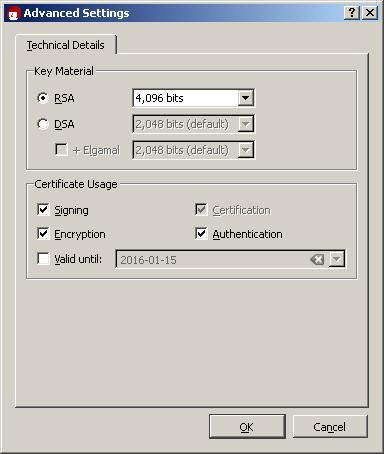
Click on Advanced settings.... We'll use RSA. Change strength to 4096 if you want. (More on this in Linux post above. I will also attempt to giva a more detailed explaination of all this stuff in the last post of this series.)

key-type-RSA.jpg


Back at the Details screen, click Next.

Type a strong password, mix it up good.
passphrase.jpg


Success!
success-and-do-backup.jpg


Now click on Make a backup of your key pair.

Choos a name for the backup file, check Ascii armor and click OK.
backup-export-options.jpg


Now back at the previous screen, click on Upload certificate to directory service. Click OK to dismiss the warning. Your key pairs are now exported, ready for backup. For backup information, see the last bit of the Linux section above.

Before you back up, it is best to generate a revocation certificate first. You can use this revocation certificate to revoke your keys in case they get compromised (forgot passphrase, lost/corrupt keys, stolen keys etc..)

Weirdly, Kleopatra doesn't seem to have this function. So we'll use the command line. Yay!

In Windows XP, click start -> Run, type in cmd and hit enter. In Windows Vista and above, somewhere in your programs menu, click on command prompt. Elevated privileges should not be necessary.

First we need to find our Key ID. So list the keys(commands in bold):
Code:
C:\>[B]gpg --list-keys[/B]
C:/Documents and Settings/terminator/Application Data/gnupg/pubring.gpg
----------------------------------------------------------------------
pub   4096R/A1B2C3D4 2014-01-15
uid                  Arnold (I'll be back) <[email protected]>

Note: As you can see, this method using Kleopatra does not create any subkeys. All signing, verification and encryption is done using this one key. Using GNU Privacy Assistant on the other hand, creates a separate subkey. More on subkeys later.

The Key ID in above output example is A1B2C3D4. You will use your own in the next command. For the filename to be created I will use [email protected]. You may specify any filename you like. I normally use the format [email protected]. More than one user can be created for a given key pair, so this naming convention of mine should not be the logical choice for such a multi-user key.

Generate revocation key:

Code:
C:\>[B]gpg --output [email protected] --gen-revoke A1B2C3D4[/B]

sec  4096R/A1B2C3D4 2014-01-15 Arnold (I'll be back) <[email protected]>

Create a revocation certificate for this key? (y/N) [B]y[/B]
Please select the reason for the revocation:
  0 = No reason specified
  1 = Key has been compromised
  2 = Key is superseded
  3 = Key is no longer used
  Q = Cancel
(Probably you want to select 1 here)
Your decision? [B]0[/B]
Enter an optional description; end it with an empty line:
> [B]I normally forget my passwords, because I don't know how to manage it.[/B]
>
Reason for revocation: No reason specified
I normally forget my passwords, because I don't know how to manage it.
Is this okay? (y/N) [B]y[/B]

You need a passphrase to unlock the secret key for
user: "Arnold (I'll be back) <[email protected]>"
4096-bit RSA key, ID A1B2C3D4, created 2014-01-15

Revocation certificate created.

Please move it to a medium which you can hide away; if Mallory gets
access to this certificate he can use it to make your key unusable.
It is smart to print this certificate and store it away, just in case
your media become unreadable.  But have some caution:  The print system of
your machine might store the data and make it available to others!

This created a file called [email protected] in C:\.

Now you can backup your exported keys and revocation certificate.

It's best to keep these files on an encrypted usb drive or secure cloud storage. I will not recommend using Drop Box for this. I use Wuala, because there are no keys kept on the server. All files are encrypted locally before they're uploaded. This part is entirely up to you. This is a possible single point of failure/vulnerability that malicious hackers could exploit, so be careful where you store your keys. I would also recommend keeping your revoke keys in a separate folder, to make sure you don't accidently import them during key restoration from backup.

Info: If someone stole my private key, will they be able to decrypt any files or messages that were encrypted with my public key? Directly, on the fly, no. Because they still need the passphrase. But it opens your private key to brute force attack, which theoretically should take a very long time to do. Still, your key has been compromised and needs to be revoked.

If your keys are ever compromised, import the revocation key to revoke it locally. Then send the revoked keys to the key server to revoke it globally.

To import public and private keys restored from backup:

In Kleopatra, Click File -> Import Certificates... (or the large Import Certificates button), and choose your restored key files. If importing private keys, you will be asked for your passphrase.

You may also use GNU Privacy Assistant (included with Gpg4Win installation).

And you're done.
 
Last edited:
On Linux or Windows (if using Thunderbird)

Integrating with your email client.

Evolution has built-in support for OpenPGP. Here I will cover how to use with Thunderbird.

What we'll need is an add-on called Enigmail. It is being actively developed, very stable and works perfectly.

To install, open Thunderbird main menu --> Add-ons
Menu_029.png


In the top right search box, type in Enigmail and hit search.

At the time of writing, latest Enigmail version is 1.6.
Selection_030.png


Click on Install to the right, accept the terms and restart Thunderbird.

Open Thunderbird main menu -> Preferences -> Account Settings
Workspace1_033.png


From account list on the left, under your account, select OpenPGP Security.

Enable OpenPGP Support.
Selection_034.png


The rest of the options below that can be changed when composing your messages. For now, set it to look like the image above. You can always change it later to your liking.

Click OK to save your changes. Now we're ready to not be seen sending wicked stuff around.

To send an encrypted mail to someone, you will need that person's public key on your key ring. The message will be encrypted with his/her public key, and decrypted on their side with their private key and passphrase.

For this exercise you can send an email to yourself if you don't have anyone's public key yet. You could also search for the following key on the public server and use that address and public key to send an encrypted test mail to: 2CE844FB. I will reply with a message encrypted with your public key. Remember to upload your key to a server, or include your public key in the email, otherwise I won't be able to encrypt the reply with your key. If you followed the instructions above, we're good to go.

It is always wise to keep the data to be encrypted to a minimum to avoid creating large encrypted files and to avoid errors that might creep in when encrypting all sorts of rich text. So if you only need to send information as plain text, then compose your message as plain text. Don't worry, you can encrypt all your text and attachments, just make sure you're not needlessly wasting cpu time.

So let's first create an encrypted plain text email. A quick way to do this is to hold down the shift key while clicking on Write/Compose.
Selection_035.png


If you're going to send to yourself, you can skip this next few steps of importing a public key from the server.

Click on OpenPGP -> Key Management
Writenosubject_038.png


In the next Key Manager window, you will probably see only your own public key. All your public keys from your keyring will be listed here.

Click on Keyserver -> Search for keys
OpenPGPKeyManagement_039.png


And type either a key id or email address in the search field. Use any keyserver, they all synchronise keys.
SelectKeyserver_040.png


(Moving on to next post - MyBB does not like more than 9 images)
 
Last edited:
(Continue from previous post)

After you click OK, you should see 1 entry found. Make sure it is checked and click OK.
DownloadOpenPGPKeys_041-1.png


Success:
OpenPGPImportedAlert_042.png


The key should now be in your list. You can now close the Key Manager.


Select your recipients and complete the subject and body of your email to be sent.

Then click on OpenPGP, select Encrypt Message and Sign Message.
WriteCookies_036.png


Only use PGP/MIME if you're certain that the recipient's email client supports it. More about this later.

Enigmail will encrypt the email with the public key corresponding to the email address in the recipient/to field. You will only be asked for a password to sign the email. If you chose only to encrypt (not sign) the email, no passwords will be required from you. The recipient will be asked for his passphrase to decrypt the message, once he receives the email.

Send it.

Decryption is fully automated process on the recipient's side, apart from him needing to enter his passphrase. If the password was saved from a previous decryption, everything will happen automagically.

Selection_037.png


The email was decrypted and verified as indicated by "decrypted, good signature" (and of course directions to the cookie jar). You may wonder why it says UNTRUSTED. That is for another post, when we get to something called a "Web Of Trust."

So what does this email really look like after it's been encrypted, to some cookie craving basement hacker? -->

-----BEGIN PGP MESSAGE-----
Charset: ISO-8859-1
Version: GnuPG v1.4.12 (GNU/Linux)
Comment: Using GnuPG with Thunderbird - http://www.enigmail.net/

hQEMA1eogLrI1CmdAQf9F84pYfg3qDFVU82MgD84QFLt5A+0kYdhUc7/a31bSEUo
S5Hz6JTjD94BHF8YUxUebgdJOpaHUZsrDy4VdVFD4isMCh0efaUmO6Re0XF7iLN9
CBRpwJKhE7nG2ADlXWApdIJ+nj9x8+e6xsK47xPE2zrIpwrSRn7Cpd6eL9VnL9b3
r8pfIkjQedd5soFXNsieRaWScbz6lYiLCUuN8bQaFE1nihxVuzHfTDOXk2YmFhnw
aDk20fw2tYhUH2in3or7yc5/3dmHBFTxv8PAzviU48JfeGnMbxgsWScIivACmG8M
JbwlWuKUFggUQhJqt6GTPgy8G2nFicZmcAusI80pa4UBDAPUyAor0ycPJgEH/1yj
/S8NoOePXvME8XPfOePiNOeyB1CMegpbwG4vIcai/hFPXtKtzooOqdUX84hfv1Q/
ubK6qTBsib0suHeVZPs3OPiuAf8jkdmmgYdre7KkoaZoPwto8sY0G8d82u7rzAZ6
Geq980YCnLCyzaaZPNuUaZxSZ5M3qwfmslupednkYMXCl9UB5QMVDzLcTHSsJyoJ
BVi6wSsYreFEW9btfJarHkiKGWN4XjbReEJacQytFXC/a0wv658usQpSEpJ83cM7
bJZm4X0Am4VeS6rC6+y4cwkgbwPvb5ysBcEtFbMckdywHSVUDUwtSxsXA1UYCMTn
hxv1LWZcztFULaYdN/fS6QHGcqWEAi09s/8rWn3sVsaRtoPhh9c77MZTP7CQwxJ+
8PEqe/sn+B0rS8Q8Yc8cl8MhYaXFmI5ZMpNErlrcH3yPXN9vvE8U+9CKJZ+ANcs/
5IVLb0sZmrG2ZFGFk2XwfQ7Ybo/aM12sDN5y4I/Pfl5OwgIstH1+9Rdwf4gp6WCg
X/NU7lgDlq3bmrSG90JrgN/NNutFkIwW4DZo/MMrQ1MDgK/vOpVNAundNnRULVBz
uhEDiHK5qr5lXid+h8kxcKUwwkL44kR58Q14zREQpdyy7PHGrrW0AgY6HxT9bEDN
PMdnYUqyh8Fd8LsmYCGB7EDqHT5keLToeLC2+feIv6rWOC7KHwWt0eAsYELaYObF
Zl4+lyNJqwfAA8L+wwGAXIjK8ess3OSeWquuDcHmLeleCDoke1V1Y0w1+5P4SRpA
0ZxoaPpG01oA+Q9QAWmvI3g4ghocOwVIpXStqAqIkr3LhJVVVUQvW7aiKgtemTum
nwDUqYEX5HTz9cDN18HtvzK7vu3RP7bO7tMyzyggMCmyvqo6KNeAbwlBddgHIsuL
kXowG0K8BtZkU9kCisEvT9DdDUf5QOBtKzNqah2PML0OuPN+zhilKYg0rGWThNrA
/4X3ev/omB9hQv5p18IOHUPBrnesBLwaJubXMhvjFgix+Getp3/F75VV/WQ291+/
KgNwlcIWb6WVTo+nyl4DOBl5d0P6JdgIeYArQfxFDQvBkb+q6sD0aXpVvg==
=iPy8
-----END PGP MESSAGE-----


And that's it for this section!

END. FIN. HAPPY DAYZ.
 
Last edited:
On Android

Integrating with email client

This stuff is fairly straight forward on Android. But you'll need the right tools:


Install both apps.
Configure K-9 Mail with your email credentials. K-9 Mail detects your iMAP/POP/SMTP servers automatically, no fuss. It is a great app with loads of potential, also integrates seemlessly with APG. Support for GNU Privacy Guard for Android coming soon.

So to quickly run through it (see details in previous posts), if you want to create your keys on Android using APG, it's easy as:

[table="width: 100%, align: center"]
[tr]
[td]Menu -> Manage Secret keys
001.png
[/td]
[td]Menu -> Create Key
17385642-a566-4107-919e-bfe7bd2cbb92.png
[/td]
[/tr]
[tr]
[td]Click + to create User id
003.png
[/td]
[td]Click + to create RSA key
004.png
[/td]
[/tr]
[/table]

Remember to set passphrase! (Click the button that says Set Passphrase)

To import keys exported from your desktop in above examples, from key management -> Manage Public/Private Keys -> Import Keys.

Encrypting / Decrypting with K-9 Mail is also very easy:

Compose new message.

[table="width: 100%, align: center"]
[tr]
[td]Check Sign and Encrypt
58d448f1-5dc9-4107-b161-04daf1616429.png
[/td]
[td]Select key for signing
53aac845-d3dd-440e-be54-35e05b1d9ac1.png
[/td]
[/tr]
[/table]

The mail will be encrypted with recipient public key. This key must be on your keyring. See previous examples on Windows/Linux Desktop.

Decrypting / Verification:

[table="width: 100%, align: center"]
[tr]
[td]Click Decrypt to verify and decrypt.
5c57015d-40db-4de1-aff5-da02834e7b41.png
[/td]
[td]Type your passphrase and done!
467ab74e-df29-4ce5-ba46-83f0821002b1.png
[/td]
[/tr]
[/table]

Verified and Decrypted...Android style!

Peace.
 
Last edited:
Q & A

1. What does a typical public key look like?
Here's one of mine (2048 bit ascii armor):

-----BEGIN PGP PUBLIC KEY BLOCK-----
Version: GnuPG v1.4.12 (GNU/Linux)

mQENBFLXsBQBCADqDFbbq0NOujfwlqMZ9wr3+GUXuwRXo+PIPHuu4swVzkpjdg74
MlD8tMsDs1MER8uEA4LiFzFDBHGfq7arKWHdVA1DX+KiVF84ROLb8C6mNiQtjR/s
PKgmD4LqY9V3avfTi5xCOLzvAdAwxDCTS3/4I6sGLfIitO8O7ya0icglWtBkwJ5N
CDGUQer/brAG+AH59iZP1PevoOMCehrx8mHlrbsaspGVIk8zg1q+oZZX93rdrKMa
iZj/MQ0cTLreIewBvZU1qMMcMNEkTc/lWyltTvT79crp82Fc5lr+KXCycy8vJXnp
6h7Ih1J7IUi5MZMVQzPH6ZjfBwmthrkHO9dJABEBAAG0KFdvcmxkIFdhZ2VyIDx3
b3JsZHdhZ2VyQGdvYml0Y29pbi5jby56YT6JATgEEwECACICGwMCHgECF4AFAlLX
uIkGCwkIBwMCBhUIAgkKCwQWAgMBAAoJEEUTVYqLvgkrB+AIAMugE4m6eiGVwNyk
ILHi7e7jFi21dLHHJbHgmMQasc6YAJDMc+71+yl+j3kZFV/VBkepIVN/mGvGbYby
/Fh2z1itixgJxUYzIwUvQKA4KAOsmCjBNzHjoglzwx2vLEzyPVrF4HA8S5tQXORX
hNIYGke71pYctEWYQgDoIDUoR6trTwg8GTLWw3mMMZwMmIK5XCoPl6z6tMX7Qpz8
cpHExRPELt2sgqe1QcGNR9kd+BJ5jul3bCax3V62f8LYgUlE78m3Id5nalQB8gMp
0r27fOshbcrY7trvEoVmEm9+RUHUAvIOsVhcXzLtz7cPJSDcVVHS/GqM7BCdAi23
i6zGvZu5AQ0EUtewFAEIAM01FJZjUL3qmUJoeJjpYpV+fgrujKrN5Mk180qxQdPA
lvelp3L8/Lo15Ym1tZoMKJEsP3vjg730GDH0W55h2iVjhWecqYTU+eBqHJfngqLr
ba85Pyl+960N85XNJCm6MJxIWgExxRYfdK50B9RUYH4WJ0/kGPZoV3swIY2YPGCm
QKyxhIzwahEinO5rawihPDEcvDy6mUQSM5pHpJ9KSo1S+Z6LbScQjldPtiuRS5Wr
Y0Da0pnXyFMvYx+GGQnHULlBWxfyTwa0dX7+IBlwhmsFeJKyEVXgcfca7rwe/4H7
V5mnnkg3dQKBAqbgGJ+iDX0b/qJk6DsIVAnVEj7F2bUAEQEAAYkBHwQYAQIACQUC
UtewFAIbDAAKCRBFE1WKi74JK0eICAC3MieVGxdRQyg68u0sCLMsN/3QeDkMKzNf
u+EybL27mAzmK5Wu5BG4tNB+9HcJwCtEZ3KbSth0wAI/C9+PYknGpwyi+PR1uV2E
/3+m7W+/KD1z5wigVEAF/gH01ruE6zPsxsZwo36YJVRn8DwoA9+nuJIo5aMSFGTN
gJXJGRYP/lG/Tq1P9+PfQseeV7ehyIdA+HkdsmfExIkFstpJy1oycuwllU3OpCRx
+vUZnj9o+DeBtgfC41XYGQwtgoEp0vCUW60xK3zcXdkoZAzD09Cq8Q8oU3SXpQz3
BAqJHsRZSF2j5kPEqe6GlQLZN32TZbG6QjaeFTvhRsjAWHcdcKSw
=ytwa
-----END PGP PUBLIC KEY BLOCK-----


2. How can people find my public key?
There are many ways to distribute your public key. You can attach it as either plain text in an email or as the contents of an attachment to an email. The intended recipient could also search for your key on public key servers. This normally happens automatically and will find your public key by searching for your email address on the default server. An even better way would be to include your key id (in the form of ABCDEF01) in your signature. This key id can be used to verify that the correct key is downloaded from the key server. You can even upload it to a public file server and provide people with the link to it. Or paint it on the side of your house.​

3. What is the key id?
The key id is generally the bottom 32 bits of the public key modulus. See "How can people find my public key?" above.​

4. What is a key fingerprint?
Fingerprints are 40-digit cryptographic hashes of your public key. A unique identifier for your public key.​

5. What are the most common commands for using GPG on the command line / terminal?
[table="width: 100%, align: left"]
[tr]
[td]gpg --gen-key[/td]
[td]Generates a new key pair[/td]
[/tr]
[tr]
[td="width: 30%"]gpg --import my.key[/td]
[td]Imports a public or private key from file. You can import your friend's public key using this command, if it was sent to you as a file, for example via email as an attachment. If the filename is omitted, gpg will wait for you to supply the key via standard input (paste the key as text, or type it in if you're Will Hunting), end with ctrl-d.[/td]
[/tr]
[tr]
[td]gpg --list-public-keys[/td]
[td]Lists all public keys currently on your keyring, including your own public key.[/td]
[/tr]
[tr]
[td]gpg --list-secret-keys[/td]
[td]Lists your private/secret keys currently on your keyring[/td]
[/tr]
[tr]
[td]gpg --list-keys[/td]
[td]Lists all public and private keys currently on your keyring[/td]
[/tr]
[tr]
[td]gpg -ao my.key --export ABCDEF01[/td]
[td]Exports the public key with key id of ABCDEF01 to file called my.key. The -a option tells gpg to export the key as ascii(text) armored, instead of binary. The -o (same as --ouput) tells gpg that we're exporting to a file, filename to follow. If -o and filename is omitted, gpg will export the key to standard output (print it to the screen). Use --export-secret-keys instead of --export to export your private keys.[/td]
[/tr]
[tr]
[td]gpg -armor --recipient ABCDEF01 --encrypt c.txt[/td]
[td]Encrypts the contents of file c.txt as ascii armored to file called c.txt.asc. To specify an output filename, use --ouput (or -o) followed by filename. To ouput as binary, omit the -armor (or -a)[/td]
[/tr]
[tr]
[td]gpg --decrypt c.txt.asc[/td]
[td]Decrypts encrypted file c.txt.asc. Will prompt for passphrase of owner of public key used to encrypt the file.[/td]
[/tr]
[tr]
[td]gpg --symmetric --encrypt c.txt[/td]
[td]Encrypts c.txt using symmetric cipher. You must specify a password. Anyone who knows the password can decrypt it. --symmetric can be substituted with a shorter -c[/td]
[/tr]
[tr]
[td]gpg --output c.txt.sign -abs c.txt[/td]
[td]Signs c.txt with default key, stores the resultant ascii armored signature in file called c.txt.sign. You will be prompted for your passphrase. [/td]
[/tr]
[/table]​


Updating this as I go....
 
Last edited:
Top
Sign up to the MyBroadband newsletter
X