


Dimpie (JIGSAW)
Honorary Master
New Windows 11 update dropped at 8pm.
February 10, 2026—KB5077181 (OS Builds 26200.7840 and 26100.7840)
Done


South Africa’s biggest forum. Discuss, discover, and connect with thousands of members.
New Windows 11 update dropped at 8pm.
February 10, 2026—KB5077181 (OS Builds 26200.7840 and 26100.7840)
Happy for you. Shouldn’t have to strip the hell out of an OS and run 3rd party fixes just to get an OS to work how it’s supposed to, though.


So have I. But that was just to make it better, not to ensure I could at least do basic things with it. This entire thread is basically just "oh ****, M$ just broke something else (notepad, shutting down, etc) - do X, Y, Z to fix it".true .... but I've always been happy to tweak/change my OS to my own liking
Im as happy as a pig in sh|t with Win 11 ... on about 4 machines ... touch wood... NO issues

 www.pcworld.com
I would reckon only if you have secure boot enabled ... do you?Can the boffins here please tell me if the below is an actual issue?
Windows 11's Secure Boot fix update finally rolls out to more PCs
Important security certificates for Windows 11 will soon expire for many users. In some cases, you will need to take action to prevent this from happening. Here's what you need to do and why.

Microsoft has announced that the original Secure Boot certificates that were issued when the feature first began shipping 2011 are set to expire this June, and that PCs which are not up to date will enter a degraded security state when this happens.
This is the first time since Secure Boot was introduced that its certificates are expiring.
Secure Boot is a security feature that ships as part of Windows PCs, and is on by default. It protects your PC from certain security vulnerabilities that could be exploited during the boot phase, before Windows even fully loads, and ensures only signed code can run during this phase.
Pretty much all PCs that have shipped since 2011 include Secure Boot, and so most Windows users are going to be impacted by these Secure Boot certificates expiring.
Microsoft says that most PCs will automatically be updated with new Secure Boot certificates via Windows Update, but that some PCs will need an additional firmware update issued by their OEM too.
 www.windowscentral.com

 www.thurrott.com
Microsoft may be trying to improve the quality of Windows 11, but communication remains a weak point. Case in point, today’s explanation of Windows 11 version 26H1 will leave readers more confused about this release than they were before they read it.
“Windows 11 version 26H1 is a targeted release that supports some of the new device innovations coming in 2026,”. Microsoft program manager Aria Carley explains. “That means that this release is not being made available through broad channels but is only intended for those who purchase these new devices. At this time, devices with Qualcomm Snapdragon X2 Series processors will come with Windows 11, version 26H1.”

By default, Windows only remembers the last thing you copied. This can be a problem when you’re working with multiple links or text snippets. In such cases, bouncing back and forth can get annoying quickly.
Clipboard history is a simple, yet incredibly useful feature that can save up to 25 of your most recently copied items, including text, images, and screenshots. This means you can copy a link from your browser, a paragraph from a document, and take a screenshot in another app, then paste everything at once when you need it.
The clipboard history feature doesn’t come pre-enabled on Windows. To use it, press Win + V, and you’ll see the option to turn it on. You can also head to Settings > System > Clipboard and enable it from there. Once it’s on, that same Win + V shortcut lets you see everything you have copied recently and paste any item with a click.

 www.makeuseof.com


 www.thurrott.com
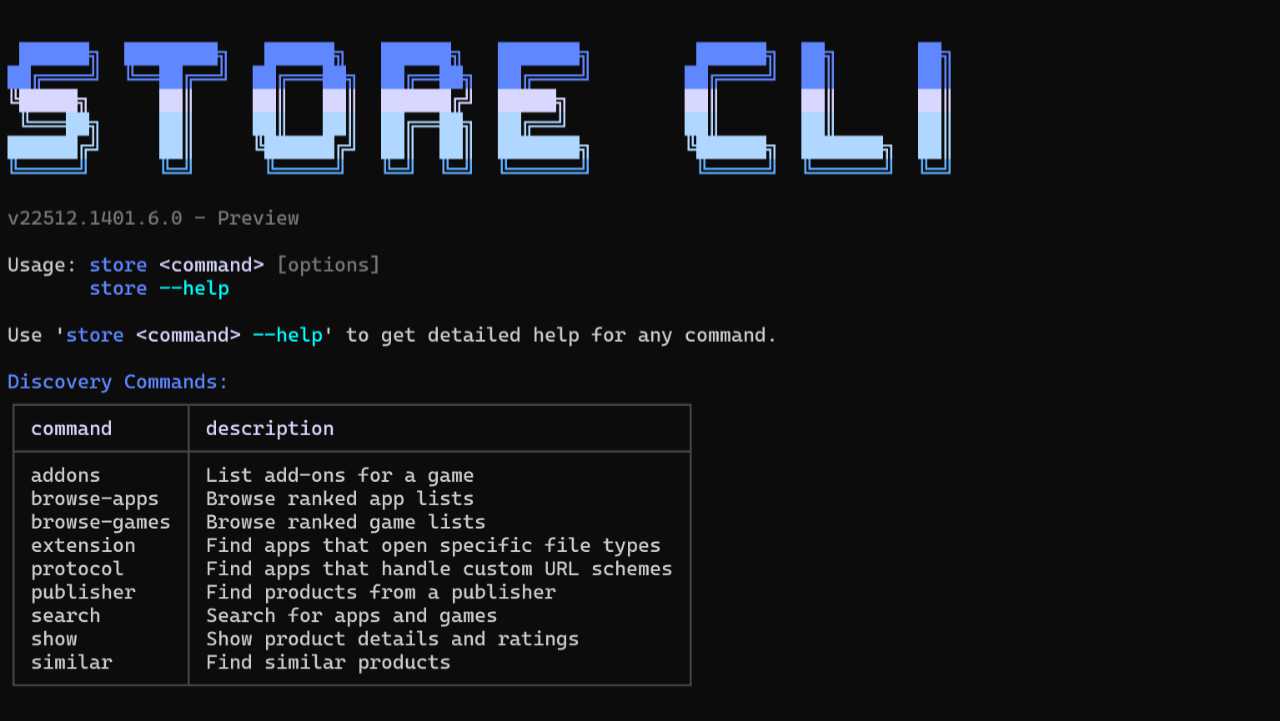
Lol welcome to 1998 M$Microsoft today announced a new command line interface (CLI) for the Microsoft Store in Windows 11 called the Store CLI.
“A new command-line interface for the Microsoft Store brings app discovery, installation and update management directly to your terminal,” Microsoft vice president Giorgio Sardo explains. “This enables developers and users with a new way to discover and install Store apps, without needing the GUI.”

Initial release 31 March 1998; 27 years ago[1]


It has just been a few days since Microsoft released KB5077181 (Build 26200.7840), and already, users are reporting critical issues following its installation.
The most severe report that has appeared on Microsoft Learn Q&A involves an infinite boot loop where devices restarted more than 15 times before reaching a broken login screen.
This issue was not isolated to just one device, but a number of them, all reported by the same user.
The affected systems frequently show a System Event Notification Service (SENS) error when trying to log in; the error explains that a specified procedure couldn’t be found, preventing login.
Additional issues that have been reported include a complete loss of internet connectivity due to DHCP errors and installation failures that come up with the error codes 0x800f0983 and 0x800f0991.
In the case of the latter error codes, one user reported that using the System File Checker tool (sfc /scannow) worked.
In the case of the DHCP error, the user reports that their network was connected to the Wi-Fi, but no internet was available.
Some users have tried to fix their machines by removing the update, however, Windows 11 may still try to install it automatically; you could attempt to pause the update, but this is only temporary, so Microsoft needs to offer out-of-band updates for a lasting solution.
Ew, why not a fresh install? Upgrades from 10 to 11 unload a whole new level of ****.A client had asked me to update 2 x Dell Optiplex 3050 desktop PCs with a 7th Gen Intel i5 CPU & 8GB RAM from Windows 10 to Windows 11 - the first PC took me most of the morning to try & update to Win 11 25H2 using Rufus on a 32GB USB drive.
It kept on coming up with this error message when trying to do the Win11 25H2 update...:
"You can't install Windows on a USB flash drive using Set-up"
View attachment 1885673
I then tried using an earlier ISO for Win11 - using 21H2, 22H2, 23H2 & 24H2 ISOs - but got the same error message each time.
I even tried creating the Rufus ISO USB install on both my PC & on the Dell - same result - got the error message again.
Eventually I Googled the error message - seems it's a common glitch with doing an upgrade to an existing Windows 10 (or Win 11) OS. It suggested doing the following:
Right-Click Start, select Run & type in "Regedit" & click OK - then navigate to HKEY_LOCAL_MACHINE\SYSTEM\CurrentControlSet\Control and change the value of "PortableOperatingSystem" to 0.
I tried the nuclear option - I just deleted the offending registry key entirely. Went back to the Rufus USB - tried to do the upgrade again and lo & behold - it now did the upgrade successfully...
This is the FIRST time I have ever had this error crop up when using Rufus on a USB - at least I now know how to circumvent it going forward.
