


Dimpie (JIGSAW)
Honorary Master
Done


South Africa’s biggest forum. Discuss, discover, and connect with thousands of members.


The Copilot app in Windows 11 is getting its own browser, which means that when you follow links provided by the AI, you'll stay within the confines of the app.
Windows Central noticed that Microsoft is set to roll out the in-app browser for the Copilot app on Windows 11 (and macOS), where it will open links in a panel to the side of the chat.
Normally, links would be fired up separately in the default web browser, but with this change, Microsoft aims to keep more activity within the Copilot app.

My biggest gripe with the lock screen is not really Microsofts fault.Microsoft turned Windows 11’s lock screen into MSN hell, now it’s undoing most of it - Windows Latest
View attachment 1938434
Microsoft just quietly removed the most annoying part of the Windows 11 lock screen. Windows Latest first spotted a new addition to Microsoft’s release notes saying Weather is now the only widget shown by default on the lock screen, with users able to add other widgets from Settings.
Windows 11 originally put Weather, Sports, Money, and other MSN-powered cards on the lock screen. Microsoft later let people customize which widgets showed up, but the default experience was cluttered. Now the company is effectively admitting the lock screen works better when it does not throw a mini news portal at you.
Of course, this is a much-needed change. But after going through Microsoft’s lock screen widget controls, I also have a few questions about why the Windows 11 lock screen still feels so bland, for lack of a better word.
Microsoft is finally making the Windows 11 lock screen quieter
The new addition showed up in the change log for the August 27 preview update, which is what Microsoft added into the mandatory September 8 Patch Tuesday release. Microsoft added the entry on September 14, almost a week after releasing the update:
“[Widgets] New! To provide a quieter, more focused Widgets experience on the lock screen, Weather is now the only widget shown by default. You can add other widgets in Settings > Personalization > Lock screen. This change began rolling out to new users in July and is now rolling out to existing users”
View attachment 1938435
Lock screen settings previously showed Weather and a useless bunch of cards like Daily Wonder, Daily Discovery, and Events Near You, all switched on by default. After the update, there is only the Weather widget.
You can still go to Settings > Personalization > Lock screen and click Add widget to add these widgets back, along with anything else that supports the lock screen’s small widget size.
View attachment 1938436
And if the whole thing is too much, you can also turn off Lock screen Widgets completely, which is what I normally do.
The September 8 update, which brought a movable taskbar, also caused some problems, like Remote Desktop breaking on some PCs, along with Hyper-V and WSL issues, and USB audio devices losing sound on others. Microsoft also confirmed the audio bug in its advisory soon after.
The emergency KB5129195 fix that followed on September 14 patched Remote Desktop and multichannel audio, and that’s when Microsoft added the change in Widgets to the release notes.
Microsoft turned Windows 11's lock screen into MSN hell, now it's undoing most of it
Microsoft quietly cleaned up the Windows 11 lock screen, dropping cluttered MSN widgets to show only Weather by default.www.windowslatest.com
I do my best to disable clippy2026 wherever I can but yea when using a browser to access outlook/office it is unavoidable.


This issue specifically affects File History, which allows you to save files and folders to an external drive or network location, but after the September 2026 update, the feature stopped working.
Microsoft now says it's rolling out a new optional update that finally addresses an issue where File History might fail to back up or restore files to an external drive or network location.
In our tests, we found that the affected devices might incorrectly display a “Reconnect your drive” message even when a compatible backup drive is connected and working properly.
The broken backup feature is not the only issue in Windows 11's September 2026 update. The same patch causes issues with Remote Desktop sessions, audio, Claude Cowork (and some other WSL apps), and even errors on AMD PCs.
Microsoft is aware of all the issues and is rushing out fixes:
 www.windowslatest.com

Last year in August, Microsoft officially confirmed new Office companion apps that were exclusive to Windows 11 and would install automatically on user PCs.
Later in October, the tech giant shared more details on why it was bringing them, explaining that it was doing so to "enhance productivity" and that with Copilot's help, would help get the job done in a "lightning fast" way.
Now, only about a year after their launch, Microsoft has confirmed that it is retiring some of these Microsoft 365 companion apps.
Last week, the company published new documentation regarding this retirement. In this guidance, Microsoft has outlined how admins can remove them using tools within Microsoft Intune or any corresponding software management tools in their organization.
The three apps being retired are Calendar, People, and Files. As their names suggest, they were designed to provide users with a way to quickly access calendar information, contacts, and files, with the apps also being integrated into the Windows 11 taskbar experience.
Microsoft says the apps will be retired and stop functioning on December 16, 2026. However, admins can remove them earlier from managed devices, and the company has already started phasing out their automatic installation through Microsoft 365 Apps updates.
Microsoft says that updates and fixes, including security fixes, are no longer being provided for the companion apps during this retirement period, but existing installations can continue to work until the retirement date; Microsoft, though, recommends removing them.
For enterprises that deployed the apps through Intune, Microsoft says admins should first remove any Required or Available assignments for the Microsoft 365 companion apps, or else Intune could again reinstall them after they have been uninstalled.
Once those deployment methods have been stopped, admins can create an Uninstall assignment in Intune and apply it to the relevant users or devices. Microsoft also recommends monitoring the removal process to identify devices where the uninstallation is still pending or has failed.
For those wondering what happens to their data, there is no need to worry as Microsoft assures removing the companion apps does not delete files, calendar events, or contacts because the data itself is stored in Microsoft 365 services rather than inside these apps.
Calendar and people information can still be accessed through Outlook and Teams, while files remain available through Windows Search, File Explorer, SharePoint, OneDrive, Word, Excel, PowerPoint, and other Microsoft 365 apps. Copilot can also be used to find files, people, and calendar information when users only remember a few details about what they are looking for.
Meanwhile, for unmanaged PCs, Microsoft says users will need to uninstall the apps themselves. This can be done from Settings > Apps > Installed apps by searching for "Microsoft 365 companions" and selecting Uninstall.
Alternatively, users can search for Calendar, People, or Files in the Windows Search, right-click the app, and select Uninstall. Interestingly, removing one of the apps should remove all three.
Microsoft's retirement announcement was published to the Microsoft 365 Message Center last week on September 18, meaning businesses now have less than three months to prepare for the final shutdown.
Interestingly, the tech giant is also asking admins to remove references to the apps from internal documentation, deployment guides, training material, and software catalogs in order to prevent users from attempting to install them again.
You can check out the guidance at this link on Microsoft's Learn website. If you have access to the the Microsoft 365 Admin Center portal, the message can be viewed here under ID MC1474111.

Microsoft is currently working on a long list of new Windows 11 features. These features are either scattered across various Insider builds or already available to some users.
The rollout is a little messy, though. Even when Microsoft officially releases a feature, it may still take weeks before everyone gets it because of the company’s Controlled Feature Rollout system.
For example, the latest optional update for Windows 11 KB5120998 brought taskbar customization improvements and the redesigned Search experience, but because of the gradual rollout, not everyone has access to them yet.
Windows 11 version 26H2 is also getting closer to release, but that doesn’t mean all of these changes will arrive with it. Microsoft now rolls out many Windows features separately through monthly updates, so some will show up before 26H2, while others may arrive later.
If a feature is already present in your Windows build but Microsoft hasn’t enabled it for your PC yet, there is usually a way to skip the wait. You can use ViVeTool, which lets you manually enable feature flags that are already included in Windows.
ViVeTool is an unofficial command-line utility that interacts with Windows’ built-in feature-control system and allows users to enable or disable features Microsoft has already included in a particular Windows build.
We’ll use ViVeTool to enable features that arrived with KB5120998, since it’s the latest update at the time of writing. But you can use the same method later when Microsoft releases new features. The only thing that changes is the Feature ID of the component you want to enable.
Here’s how to enable the latest Windows 11 features using ViVeTool:


So a few questions.
Son says his Win 11 pc did an update a day or two ago and this morning when he starts it, it seems that its just in an endless loop and does not want start into win 11. Is there a known problem?
Secondly. I am still in Win10. My pc is also something wrong for the last 2 months. It says there is updates but can never complete the update and says there is a problem. Anyway does not bother me. But we tried now making a Win11 USB installation disk on my pc, but it does not give us the option to do it on the usb, tries to do it only on C drive of my pc. We tried this to do a freash Win11 install on son's pc.

Microsoft 365's social media account is now asking users to follow Microsoft Copilot, even though Microsoft 365 is more than just Copilot, as it includes all Office apps.
And unsurprisingly, users are confused.
Microsoft 365 is still the subscription with Word, Excel, PowerPoint, Outlook, Teams, OneDrive, and everything else.
But there's a separate app called 'Microsoft 365 Copilot.'
That app journey has somehow gone from Office to Microsoft 365 to Microsoft 365 Copilot to Microsoft Copilot.Office app > Microsoft 365 > Microsoft 365 Copilot > Microsoft Copilot.
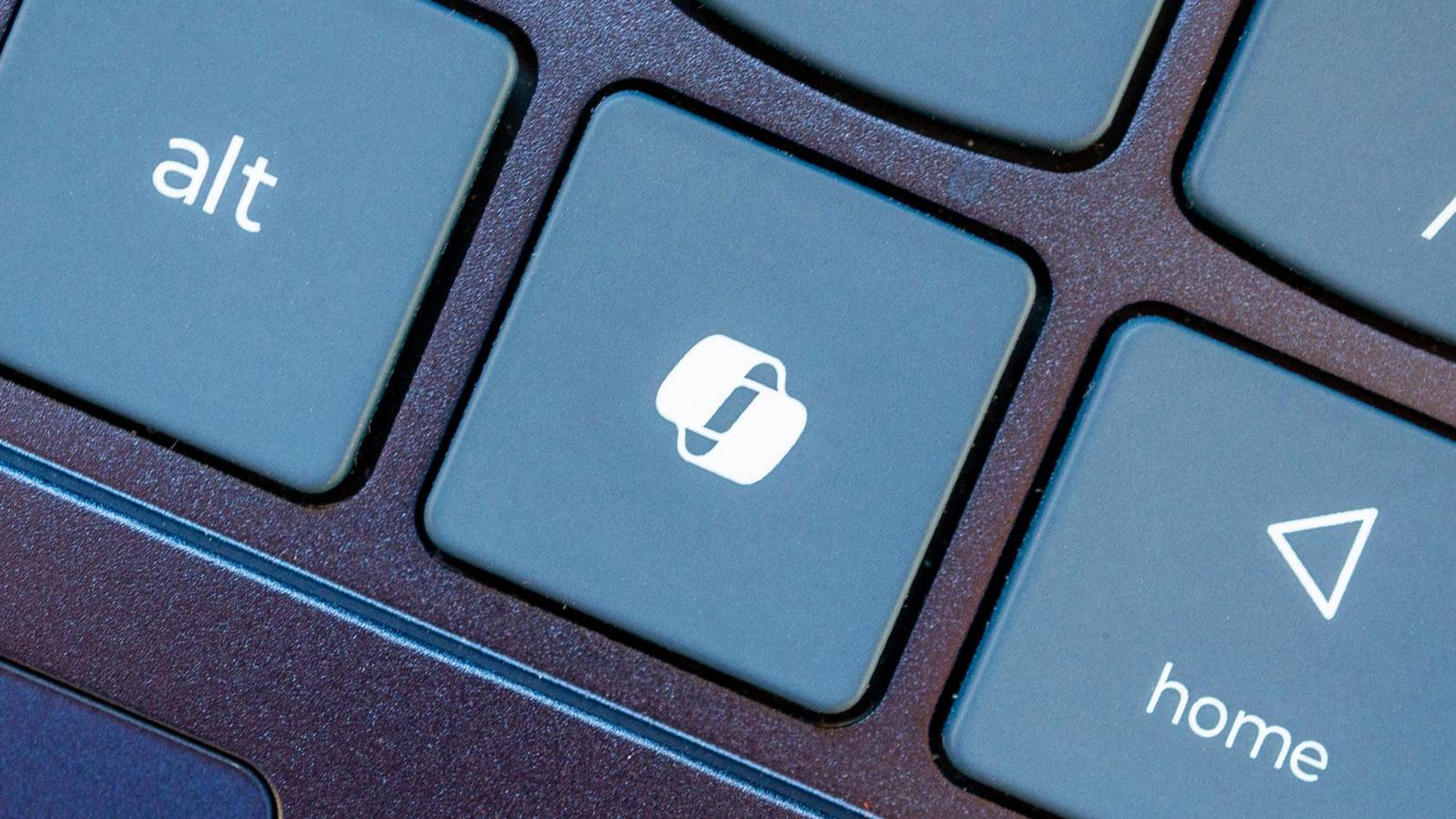
At the same time, Microsoft already had a separate Copilot app, Copilot branding in Windows, Copilot+ PCs, a Copilot key, Copilot in Office apps, and now one unified Copilot account for Microsoft 365 updates.
Regardless, it does not make sense to shut down Microsoft 365's social media accounts and ask users to follow Copilot's social media account for Copilot and Microsoft 365/Office updates.

In 2024, Microsoft and Qualcomm kicked off a new category of Windows hardware it called "Copilot+ PCs" that set the baseline for a new wave of AI-first computers, and launched with exclusive features that would not be made available on PCs that didn't meet a new set of system requirements.
The launch didn't go smoothly. Copilot+ PCs were met with immediate backlash from security researchers after discovering that Copilot+ PCs blockbuster feature, Recall, was woefully insecure. This forced the company to delay Recall and ship this new category of devices without its leading AI experience.
This pretty much tarnished the Copilot+ PC brand, and over the last two years more and more OEMs have dropped the moniker from marketing materials and product names. In fact, even Microsoft has seemingly stopped mentioning it.
I've noticed that none of the Surface PCs launched in 2026 include the Copilot+ PC moniker in their product names, unlike the Surface PCs that launched in 2025 and before. Now, you have to go digging to find any mention of Copilot+ compatibility in specification sheets.

You can't say Microsoft isn't trying everything when it comes to AI, even rolling back some consumer pushes around its PC strategy.
Today during its Copilot event, Microsoft announced a major update to said Copilot, and after going through the material myself, it’s clear the company is aiming for something bigger than a simple AI upgrade.
In a surprise to no one, Copilot is becoming the center of the Microsoft 365 experience. Instead of living inside individual apps (yes, we're all tired of that), it now acts as a unified workspace that connects your documents, conversations, data, and tasks.
This shift shows how Microsoft wants AI to feel natural for everyday users, not just enterprise customers (even though the latter will benefit the most).
This brings us to the actual news with three new Copilot experiences called Home, Code, and Autopilot, each focused on a different part of work. Together they create a more complete picture of what Microsoft thinks productivity should look like in the AI era.

Microsoft plans to get rid of three Microsoft 365 companion apps before the end of the year. Calendar, People, and Files are all on the chopping block and set to be retired on December 16, 2026.
Calendar, People, and Files are apps that integrate with the taskbar on Windows 11 to allow quick access to certain tasks and pieces of information.
I'd forgive you for not knowing about the companion apps since they only shipped last year.
Microsoft outlined the three companion apps at the time and highlighted how the apps "enhance productivity" by providing quick access to information.
Now, one year later, that productivity boost is going away.
It's interesting to compare the language Microsoft used to describe the apps when they were new and now as the apps approach retirement.
Microsoft's text from when the apps were new:
"Microsoft 365 companions are a suite of apps designed to enhance productivity by providing quick access to people, files, and calendar- powered by the Microsoft Graph, directly from the Windows 11 taskbar."
Microsoft's new text as the apps approach retirement:
"The companion apps were an additional way to find calendar information, people, and files. Removing them doesn't delete or affect any existing capabilities or Microsoft 365 data. You can continue finding the same information by using existing Microsoft 365 and Windows experiences."
It appears sometime over the last year the apps devolved from being ways to enhance productivity to additional ways to find information you can get elsewhere.
Microsoft recommends a mix of Outlook, Teams, Windows Search, File Explorer, SharePoint, OneDrive, Word, Excel, PowerPoint, and other Microsoft tools to replace the three companion apps.
The three companion apps will stop working on or before December 16, 2026, so even if you have them installed on your PC, they will not work after the cutoff.

Microsoft is making it easier to have AI do your drudge work — even when you're not there. The company has launched a redesigned Copilot app that finally ties into Office and streamlines the whole experience, including the do-it-while-you-sleep Autopilot feature.
The revamp starts with a Home section that not only unifies Chat (for quick tasks) and Cowork (a work agent), but can handle tasks in Office. You can have Copilot write a brief in Word, create a budget in Excel, or design a PowerPoint presentation. Microsoft claims formatting, versioning, and context will remain intact, even as you collaborate with others.
Autopilot (formerly Scout) gets its own section. The agentic tool automatically runs recurring work, follows up on conversations, and complete multi-step projects. As it's hosted in the cloud, you can leave it alone while you're in a meeting or even asleep.
The function has its own computing space and understands how your company works. It appears across apps like Outlook and Teams, and keeps you updated on what it's doing.
Code, meanwhile, is for building your own tools. You can use prompts to write not just apps, but automated workflows, dashboards, and trackers. It's aware of your context and is sandboxed, so it shouldn't run loose on your network.
The Code feature will reach Frontier program members by the end of September, and expand to more people in the "coming weeks." Microsoft 365 Premium and Pro users will see a preview version later in the year.
What's next in Copilot: A task manager that does work for you
Your job might be done before you even start
Microsoft is also previewing a handful of Copilot features that could again do work when you've barely started the work day. Today is billed as a "personalized command center" that shows priority issues and catches you up, whether it's in your calendar, email, tasks, or Teams chats.
Moreover, it does much of the work on your behalf — it will already have a proposed schedule or draft email ready to send.
Using @Copilot in Teams will also share the context and permissions when you ask it a question, and will even ask about making a cross-functional review. It will draw on multiple conversations to explain a decision, for instance.
The Today feature will only debut as a "private preview" in October, but is set to appear in Outlook and Teams. The @Copilot command will enter preview in Teams by the end of September.
 www.howtogeek.com

Windows 11 26H2 looks like it could be hours away, with the public rollout possibly beginning today. If there’s a delay, October 6 is another possible date, as Windows feature updates usually release on Tuesdays. Microsoft hasn’t confirmed either date, but ESDs for Windows 11 26H2 have now appeared, and they point to an imminent release.
Windows 11 26H2 is this year’s annual ‘feature’ update, but it doesn’t have any major new consumer features exclusive to this version. For enterprises, there are two notable changes to the default settings.
First, Point-in-time restore, which allows you to roll Windows back to an earlier state when something goes wrong, will be enabled by default on all PCs. And Windows settings backup, previously called Windows Backup for Organizations, will also be enabled by default on enterprise PCs.
What are ESDs, and what do they have to do with Windows 11 26H2 ISOs?
As first spotted by Windows Latest, Windows 11 26H2’s ESD files are now seeding via Microsoft’s internal servers, and they carry the Build 26300.9457.
For those unaware, ESD is better known as “Electronic Software Distribution,” and it contains Windows installation images in a compressed form. If you’ve used Microsoft’s Media Creation Tool to create a Windows installation USB or an ISO, ESDs basically power the entire process.
However, it’s worth noting that ESD is not distributed directly to consumers for you to download. For example, you can download an ISO, but you cannot download an ESD and directly upgrade Windows 11 without using a third-party tool. ESD is only a part of the material used to create Windows 11 installation media. Most people will never need to download or convert one manually.
“When a version of Windows is ready to be released, the final code within the main branch is built, packaged, and shipped through various media types. This includes ISO images and feature update packages available on Windows Update,” Microsoft noted in a document seen by Windows Latest.
ESDs usually go live hours before a major Windows update rolls out. This has been the case for the past few years, so that means we might see the Windows 11 2026 Update in the next few hours or days. Or if it’s not rolled out today, you will get it by October 6, 2026.
This is a developing story….
 www.windowslatest.com