Windows 11 Support Thread

Microsoft confirms October Windows KB5002934 update broke Excel copy paste again, issues fix - Neowin​

Microsoft fixed a recurring Excel copy-paste bug caused by Windows updates by re-releasing an updated KB5002934.

Back in September, Microsoft released the KB5002914 security update for Excel, which broke one of the most basic and used functions in the app, or for that matter, anywhere, copy and pasting. The company later acknowledged the issue and issued a fix with a subsequent update KB5002665.

However, users soon realized that the bug had returned once again in the following October update under KB5002934. To verify their suspicion, affected users uninstalled the update to see if the regression was resolved, and as expected by them, the copy-pasting function soon began working again.

This update was pushed via the Windows update channel which recently published the latest Windows 11 non-security preview releases for the month.

The recurrence of the same bug within a month, especially with something as fundamental as this, is definitely not expected from Microsoft, though it's possible that the tech giant is currently busy with the Windows 11 26H2 rollout that just happened for everyone, as well as its new features like a fully native internet speed monitor that was apparently made in just a "single day in spare time."

On the positive side though, Microsoft acknowledged the issue and has now released a fix for it. The bug affected the Excel 2017 build 16.0.5574.1005 that was initially released by the KB5002934; however, instead of pushing out a new update again via Windows update, the company re-released the same KB5002934 update again, but with a newer build 16.0.5574.1006.

Microsoft has confirmed the copy-paste regression has been resolved by this latest release.

In case you are affected by this issue, you can download the update on Microsoft's official Download Center website at this link. You can check out the official support article for KB5002934 here also on Microsoft's website.

 
Screenshot 2026-11-11 081058.png
I have two computers failing to update. Anybody else having the same problem?

Edit
I ran DISM.exe /Online /Cleanup-image /Restorehealth and sfc /scannow. Ater that install worked.
 
Last edited:
1794389004354.png

Windows 11 KB5132061 update download & install fails with 0x800f0993 error [Update] - Neowin​

Microsoft's latest Windows 11 update KB5132061 is causing unexpected installation problems, leaving users exploring possible fixes and workarounds.

Earlier today Microsoft released the latest Patch Tuesday updates for November 2026 with KB5132061 and KB5131087on Windows 11, and KB5131096 on Windows 10.

Many Neowin readers have confirmed however that the former is having download and installation issues with a 0x800f0993 error, while others report a 0x800f0989 error message.

At the moment it is hard to say what's the problem since Microsoft itself does not list any known issues. Perhaps running a DISM (Deployment Image Servicing and Management) repair could fix the issue for you.

In case you may not be familiar, DISM is command-line tool that can be used to service and prepare Windows images, and may be able to fix corrupt files when used alongside SFC (system file checker).

  1. Open an elevated command prompt. To do this, open the Start menu, type Command Prompt, right-click Command Prompt, and then select Run as administrator. If you're prompted for an administrator password or for a confirmation, type the password, or select Yes.
  2. Type the following command, and then press Enter. It may take several minutes for the command operation to be completed:
    DISM.exe /Online /Cleanup-image /Restorehealth
  3. Type the sfc /scannow command and press Enter. It may take several minutes for the command operation to be completed. Close the command prompt, and then run Windows Update again.
Aside from that, running the Windows Update troubleshooter could be an option too. Lastly, it's possible that it is a bug on Microsoft's own servers so perhaps just wait it out.

Update: A user managed to uncover a fix for the issue, and it looks like Windows Sandbox could be causing it.


User finds fix for Windows 11 KB5132061 install fail, a Microsoft feature may be culprit - Neowin​

Microsoft's latest Windows 11 KB5132061 update face installation failures, with users uncovering a surprising connection to an optional feature.
In this case, with the help of Claude, a user found that the update was failing only on the desktop PC where Windows Sandbox was enabled. Interestingly, their other Windows 11 desktop and laptop systems did not experience the same problem.

Upon inspecting the CBS.log file, they came across a STATUS_OBJECT_PATH_NOT_FOUND error referring to a missing Professional.xml file inside the WinSxS folder. The log also contained the following message: "Failed to recreate container base images: HRESULT_FROM_WIN32(ERROR_PATH_NOT_FOUND)"

Apparently this file is required by Windows Sandbox to recreate the base image of the virtual machine it runs. The servicing process was looking for an older version of the file, and the missing path was causing the update installation to fail.

As such, the workaround was surprisingly simple as all the user had to do was to disable Windows Sandbox, then restart the PC, and re-install KB5132061. This time, the update went through successfully and they also confirmed that subsequent DISM and SFC scans came back clean, suggesting that there was no underlying system file corruption that needed repairing.

To disable Sandbox through the Windows Features dialog:


  1. Open Start and search for Turn Windows features on or off.
  2. Find Windows Sandbox in the list.
  3. Uncheck it and click OK.
Alternatively, you can use an elevated PowerShell window (Run as Administrator) and execute the following command:

Disable-WindowsOptionalFeature -Online -FeatureName Containers-DisposableClientVM

After this restart the PC, and try reinstalling Windows 11 KB5132061.

For those not familiar, Windows Sandbox is a lightweight, isolated desktop environment that lets users safely run untrusted applications, test software, and open potentially suspicious files without affecting the main Windows installation. It uses hardware-based virtualization to isolate the environment, and is also disposable, meaning all installed software, files, and changes are deleted when the Sandbox is closed. Thus if you don't need such a feature, you can disable it.


Microsoft investigates Windows 11 KB5132061 issues, 0x800f0993, 0x80070306, and 0x800f0989 installation errors - Windows Latest​

1794494985125.png

Microsoft is investigating reports of Windows 11 KB5132061 installation errors, including 0x800f0993, 0x80070306, and 0x800f0989. In our tests, we observed that the November 2026 Patch Tuesday update reaches 99% before it fails, and you won’t make any progress even if you reattempt the installation.

On November 10, Microsoft rolled out Windows 11 KB5132061 as part of this month’s Patch Tuesday cycle, which means it’s a mandatory security update with close to 700 critical Windows-specific security fixes, plus other improvements like a customizable right-click menu.

KB5132061 bumps Windows 11 26H2 to Build 26300.9974 and 25H2 to Build 26200.9974, and it’s supposed to take a few minutes to finish installing. Usually, a Windows update requires a single reboot, but this one may require two or more reboots because of a pending Windows Secure Boot certificate update.

Two or more reboots aren’t exactly a problem, but there’s a bug that’s preventing the November 2026 update from installing. On my PC, the update installed within a few minutes. But some users aren’t even able to get it to finish installing, and retrying doesn’t help.

“I’m stuck in a loop of installing KB5132061, but it’s repeatedly throwing errors such as 0x800f0993, 0x80070306, and 0x800f0989,” one user told Windows Latest, and there are dozens of similar complaints.

Windows 11 KB5132061 fails to install for some users, and Microsoft is trying to identify the root cause​

1794495035077.png

One user told us that the November 2026 update failed on four of their PCs with either 0x800f0989 or 0x80070306. They tried downloading the update manually and resetting Windows Update components, but it still failed.

Another user ran into 0x80070306 on two virtual machines and shared the following error:

“Installation Failure: Windows failed to install the following update with error 0x80070306: 2026-11 Security Update (KB5132061) (26300.9974).”

I’ve also seen reports of Windows 11 KB5132061 failing with 0x800f0993 and 0x800f0922. One person said it failed seven times, including once when they tried the offline installer from the Microsoft Update Catalog, before it finally installed on another attempt.

Of course, not everyone is affected. Some users have reported that the update installed without any errors, while others say it eventually went through after they restarted their PC and tried again.

Microsoft’s support document still says the company is “not currently aware of any issues with this update.” However, that doesn’t mean Microsoft isn’t looking at the reports, as I’ve been told the company is fully aware of the complaints and is investigating the root cause, including the possibility that Sandbox is responsible.

What else can you try if KB5132061 won’t install?​

If you just can’t get Windows 11 KB5132061 to install, you can also try downloading the update from the Microsoft Update Catalog.

If nothing else works, Windows 11 has a Fix problems using Windows Update option under Settings > System > Recovery. It’ll reinstall your current version of Windows while keeping your apps, files, and settings.

For now, Microsoft is looking into the reports, and we’ll update this article when we learn more.

 
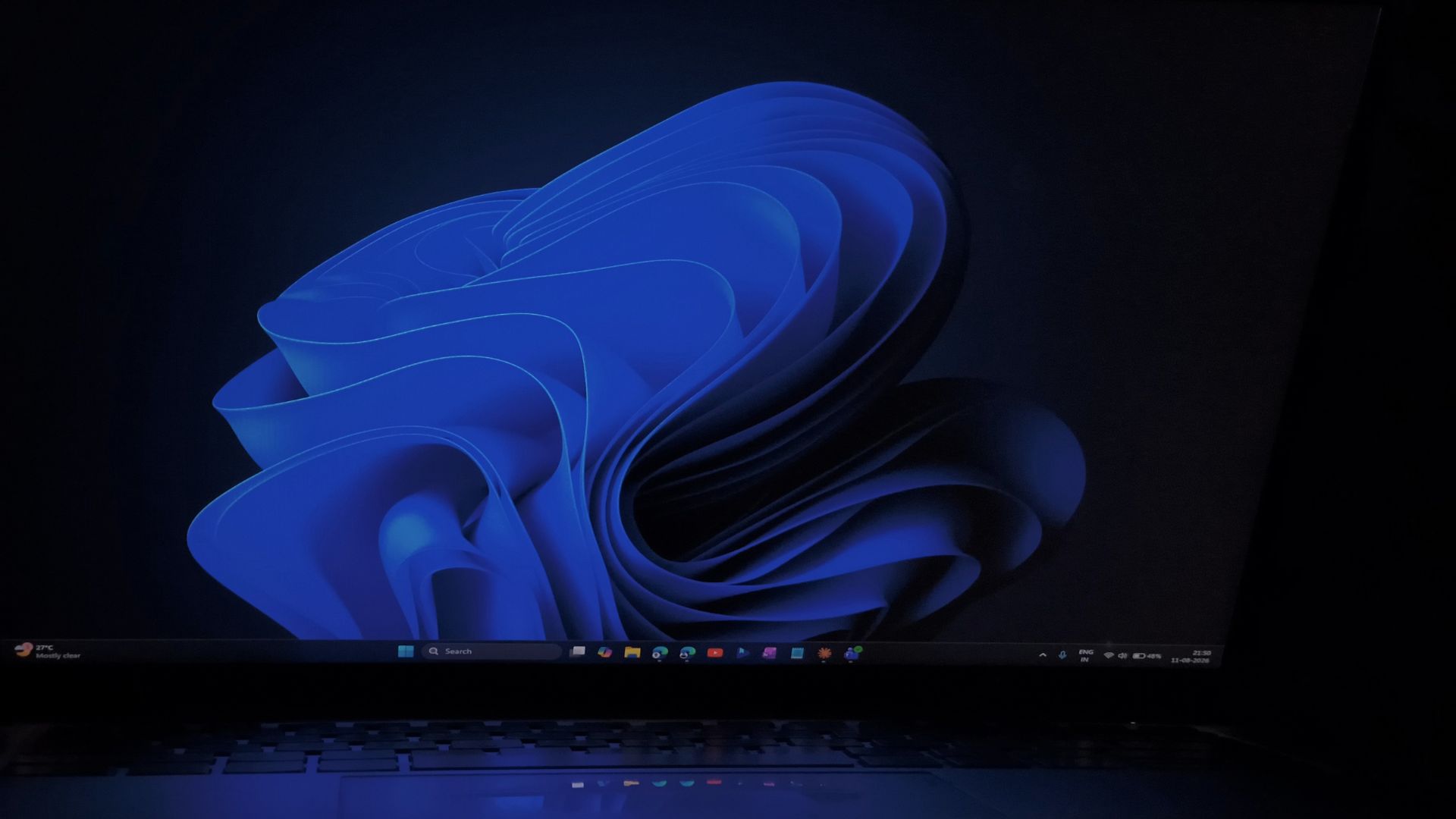
Microsoft has just released a new Windows 11 wallpaper...


Link to download the 4K version here.

UPDATE - Additional links for both the new Windows 11 Pro & Microsoft 365 wallpapers...

Windows 11 Pro (2027) - click here.

Microsoft 365 (2027) - Dark & Light Versions - click here.
 
Last edited:

Windows 11 KB5132043 KB5132061 break printing, Citrix, and Sage - Neowin​

November Windows KB5132043 and KB5132061 updates raise concerns over printing, workplace connectivity, and others.

1794983209361.png

Outages seem to have become a commonplace thing this last week, with the latest major hit coming to the Navy Federal Credit Union. Of course Microsoft 365 services were hit too, but it seems to finally be recovering.

Meanwhile, on the Windows side, admins have run into printer issues with the latest hotpatch update KB5132043 on Windows 11 26H2, 25H2, and 24H2, as well as on the KB5132061 monthly cumulative update (CU) Patch. Aside from that, users have also reported problems on Citrix.

The first reports appeared on Microsoft's forum, where an admin said that installing KB5132043 caused connected printers to show up as "Not connected", and the problem persisted even after attempting to troubleshoot the printer, with uninstalling the hotpatch update being the only way to restore printing functionality.

Another report describes a similar problem following the installation of the November CU. The user said that printing stopped working across Excel, Word, Adobe Acrobat, and other applications. Even Microsoft's built-in Print to PDF functionality was affected, and reinstalling printer drivers did not help.

Microsoft also appears to have confirmed printing troubles with the KB5132061 Patch via Admin Center, as it notes print services may fail for documents containing images with zero height or width at the selected printing resolution. These images may be used for things like invisible watermarks, layout anchoring, or document-generation purposes.

The problem has been observed when printing Microsoft Word documents using the Windows Graphics Device Interface (GDI), although other apps could also be affected. This bug affects other Windows versions too, including Server.

However, printing is not the only thing that appears to have gone wrong with the November updates. A separate thread on Reddit describes how KB5132043 broke the Citrix Workspace App (LTSR), with the application refusing to launch. Attempts to uninstall or reinstall Citrix Workspace also failed, with no GUI (graphical user interface) appearing.

The admin investigating the problem eventually found that the 32-bit Windows Installer executable, msiexec.exe, located in the C:\Windows\SysWOW64 folder, was also failing to start. They dug deeper and, using Process Monitor, traced the problem to msi_hotpatch.dll, which had been updated as part of November's hotpatch KB5132043.

Again, uninstalling the update and restarting Windows apparently brought everything back to normal, indicating that the update was the likely culprit.

Aside from Citrix, there are also reports of Sage 50 accounting software crashing following the November updates. One admin reported that Sage 50 2026.2 would freeze and crash when accessing the Vendors > Pay Bills section, while other parts of the app continued to work normally.

Interestingly, other PCs that had not received the update were unaffected. The initial report pointed to KB5132043 on Windows 11 26H2, with uninstalling it restoring functionality.

However, subsequent reports from Windows 11 25H2 users also identified KB5132061 as the culprit, and removing that update brought the affected Sage modules back.

For now though, Microsoft has not officially acknowledged the Citrix Workspace or Sage 50 problems as known issues with these updates.

 
Top
Sign up to the MyBroadband newsletter
X