


RedViking
Nord of the South
The windows taskbar does the same. Not that that matters.That bar only pops up when your mouse moves to the bottom ... then you click what you want and it disappears again ... so no, not 2 of everything
South Africa’s biggest forum. Discuss, discover, and connect with thousands of members.
The windows taskbar does the same. Not that that matters.That bar only pops up when your mouse moves to the bottom ... then you click what you want and it disappears again ... so no, not 2 of everything
But you can pin the apps to that taskbar which is already there


Agree. Rather use Rainmeter and properly mod your desktop. I also hate desktop icons, but Rainmeter just looks better if you put time into it.
View attachment 1859343

Still pointless.
That bar only pops up when your mouse moves to the bottom ... then you click what you want and it disappears again ... so no, not 2 of everything

I see your point. That's why there is start menu where you can pin apps. It's the little symbol with the window symbol in it, to the left of your task bar.My point to it all ... I DONT WANT TO SEE ICONS/SHORTCUT
pinning to taskbar ... i will see it.
Hide taskbar yes, but when Im in a few specific app windows that i click between, I dont want the others to be visible.


A YouTube creator’s videos, posted just days apart and demonstrating how to bypass Microsoft’s Windows 11 limitations, were removed for allegedly violating the platform’s community guidelines.
Rich, the creator behind the channel CyberCPU Tech, suspected that the takedown of the first YouTube video, a guide on how to log in to Windows 11 using only a local account, was due to YouTube’s AI algorithm flagging it as a false positive.
However, he also said that he hoped his next video, which showed how to bypass Windows 11’s hardware requirements, wouldn’t get flagged.
Sure enough, Rich posted another YouTube video complaining exactly about this. He changed his tune this time, though, alleging Microsoft is likely behind the action.
Unfortunately, the creator said YouTube didn't give him a clear reason for the takedowns, so his direct allegations are guesswork.
“Ultimately, like I stated before, I understand that this is YouTube’s playground. If they don’t want these types of videos on their platform, then we won’t make those types of videos on their platform,” said Rich.
He also added, “So, yes, I’m irritated that I have to self-censor myself on YouTube…But I’m going to swallow my pride, and I’m going to do what YouTube wants. It would just be nice to know if this is actually what YouTube wants, because again, they’re unwilling to tell me what I did wrong. I have to make assumptions and guess.”
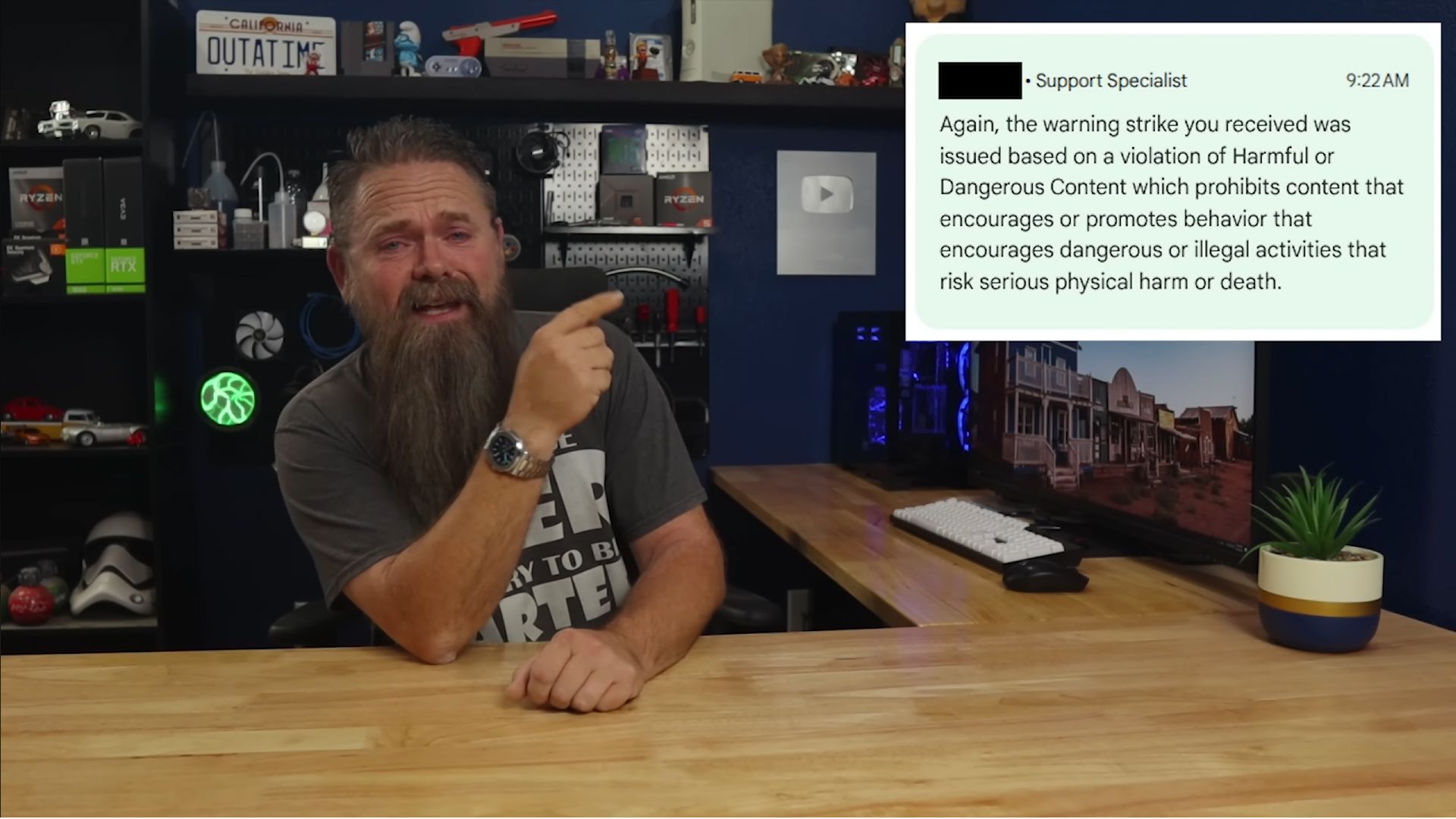
Rich claims that YouTube did not tell him the exact reason for the take-down. When he appealed the decision, the response was “Again, the warning strike you received was issued based on a violation of Harmful or Dangerous Content which prohibits content that encourages or promotes behavior that encourages dangerous or illegal activities that risk serious physical harm or death.”
This reason does not make sense — after all, bypassing Microsoft’s account requirement for Windows 11 and installing the operating system on a computer that does not have TPM 2.0 definitely doesn't risk physical harm or death, although the exact legality of it does vary by local law.

The Out of Box Experience (OOBE), what Microsoft refers to as the setup process for a new Windows install, just received a significant update — it's now even more difficult to bypass restrictions in order to use a local account. For ages, people have employed creative tricks to circumvent signing into a Microsoft account before getting into Windows, but the company is making it increasingly clear that it's not an option to skip this part.
In the patch notes for Insider Preview Build 26220.6772, Microsoft explicitly mentions the removal of "local-only commands" and says these "known mechanisms" for bypassing online sign-ins are being addressed. It requires every user to log into their Microsoft account, or they'll end up skipping "critical setup screens" that will eventually crash the OOBE, forcing the user to start over.
You must be connected to the internet throughout to "ensure device is setup correctly." This also only affects direct installs, not managed devices.
One of the most popular ways to skip a Microsoft account sign-in was to use the start ms cxh:local only command, which is now removed.
The Redmont giant already disabled the "bypassnro" method a few months ago, but there are still ways to get around this new barrier. The easiest route you can take is to run a script-based unattended installation, but not everyone will be aware (or comfortable) doing that, not to mention the sheer privacy concerns.
Check out our guide for more info.

I'm starting to look for alternatives due to sh*t like thisMicrosoft clamping down on Windows 11 local account setup — latest Insider build removes 'local-only commands,' skipping Microsoft account sign-in will crash setup process - Tom's Hardware
View attachment 1859466
Microsoft clamping down on Windows 11 local account setup — latest Insider build removes 'local-only commands,' skipping Microsoft account sign-in will crash setup process
Microsoft is clamping down on the practicewww.tomshardware.com
View attachment 1859463
Windows 11 videos demonstrating account and hardware requirements bypass purged from YouTube creator's channel — platform says content ‘encourages dangerous or illegal activities that risk serious physical harm or death’ - Tom's Hardware
A YouTube creator accuses Microsoft of being behind the action and rants about Google’s use of AI.
View attachment 1859464
Windows 11 videos demonstrating account and hardware requirements bypass purged from YouTube creator's channel — platform says content ‘encourages dangerous or illegal activities that risk serious physical harm or death’
A YouTube creator accuses Microsoft of being behind the action and rants about Google’s use of AI.www.tomshardware.com


Hot on the heels of Windows 10's end of support, Microsoft is just over two weeks away from ending support for another active version of Windows. This time, Windows 11 version 23H2 is reaching end of life, with its official end of support date set for November 11, 2025.
Windows 11 version 23H2 was first released in October 2023, and as has been the case with all consumer versions of Windows 11 to date, was only ever promised 24 months of support. Two years are now up, and individuals still running this older version of Windows 11 will now need to upgrade to either 24H2 or 25H2 to remain supported.
Remaining supported is important if you wish to continue receiving important security updates, as well as bug fixes and new features. If you choose to remain on Windows 11 version 23H2 after support ends, you'll be vulnerable to any security exploits that are discovered in the OS after November 11.
Windows 11 version 23H2 is supported until November 10, 2026 on Enterprise and Education editions.

 www.windowscentral.com


Windows 11's latest update – which is still in preview, it should be noted – has been hit by a very strange bug in Task Manager, and some other glitches besides.
Windows Latest reports that the problem with Task Manager, the panel which you can summon to show you all the processes running on your PC currently (and other details, too), is that it doesn't actually close when you shut it.
To clarify, Task Manager isn't closed when you click the 'X' in the top-right corner of its window, which is the most common way most folks will shut it down, of course. In this case, though, it keeps running, and should you open Task Manager a few times, you'll end up with multiple copies of it chugging away in the background.
Windows Latest shows multiple instances of Task Manager active in screenshots and video, and even goes so far as to open 100 copies to illustrate the fact that you could basically go on firing up a theoretically infinite amount of the app (well, until your system is overloaded with the resource requirements, anyway).
There's a fix for this, fortunately, and a way to close down Task Manager properly, which I'll come back to momentarily.
First, though, let's touch on the other bugs affecting Windows 11's optional update for October (patch KB5067036), one of them being that it simply won't install for some folks.
As noted in the official Reddit thread for KB5067036, there are multiple reports of installation failures (and not for the first time), with the update reaching 100% complete in some cases – but then falling right at the last hurdle.
On top of that, there are some reports of PCs getting bricked by the update, but those are more scattered. Still, as I pointed out yesterday, this is a preview release, and one of the reasons I prefer not to install these optional updates is that they are still in testing – and things could go wrong.

Accessing all the settings and options in Windows 11 can be challenging, as they're spread across a variety of categories in both the Settings app and the Control Panel. An option called God Mode eases the process by providing a gateway to all the core options on one screen.
By setting up the special God Mode folder, you can view the settings for Backup and Restore, Color Management, Devices and Printers, Ease of Access, File History, Mouse, Power Options, Programs and Features, Security and Maintenance, Speech Recognition, Troubleshooting, User Accounts, and much more.
God Mode is especially useful for advanced Windows users and developers who like to manage and tweak all the nitty-gritty details of Windows. But it can also prove helpful to anyone who wants an array of commands available in one place. Since Microsoft no longer offers a Start menu shortcut for Control Panel, God Mode can be a quick and easy way to access all its core features and applets.
The process for setting up God Mode is the same in Windows 10 and 11, but here I'm focusing on Windows 11. Now, let's see how this works.

 www.zdnet.com

I don’t postpone Windows updates as often as I used to. They download automatically, and I install them when it’s convenient. But occasionally, those feature updates become a real nuisance, especially when I’m tethered to a mobile hotspot. I’ll be in the middle of work, and Windows decides it’s the perfect time to chew through my already limited data pack.
Since the built-in Windows Update settings weren’t helping (you’ll see why), I turned to a registry tweak I hadn’t used in years. With that single edit, I finally stopped Windows Update from hogging my bandwidth and could actually use it for something more important, like actual work.
You can only pause updates for five weeks, after which Windows automatically resumes downloads and installs them. It’s a handy short-term fix, but not enough to keep my bandwidth safe when I’m working on a tight deadline.
Windows 11 gives you a few ways to control how updates use your data. You can set your Wi-Fi or mobile hotspot as a metered connection to stop Windows from downloading updates in the background and limit how much data other apps consume. You can also pause Windows updates for up to five weeks.
In my case, though, the metered connection setting often turns off on its own when I reconnect to the network. It might be a glitch or something with my adapter, but the result is the same—Windows Update happily burns through my limited mobile data in minutes.
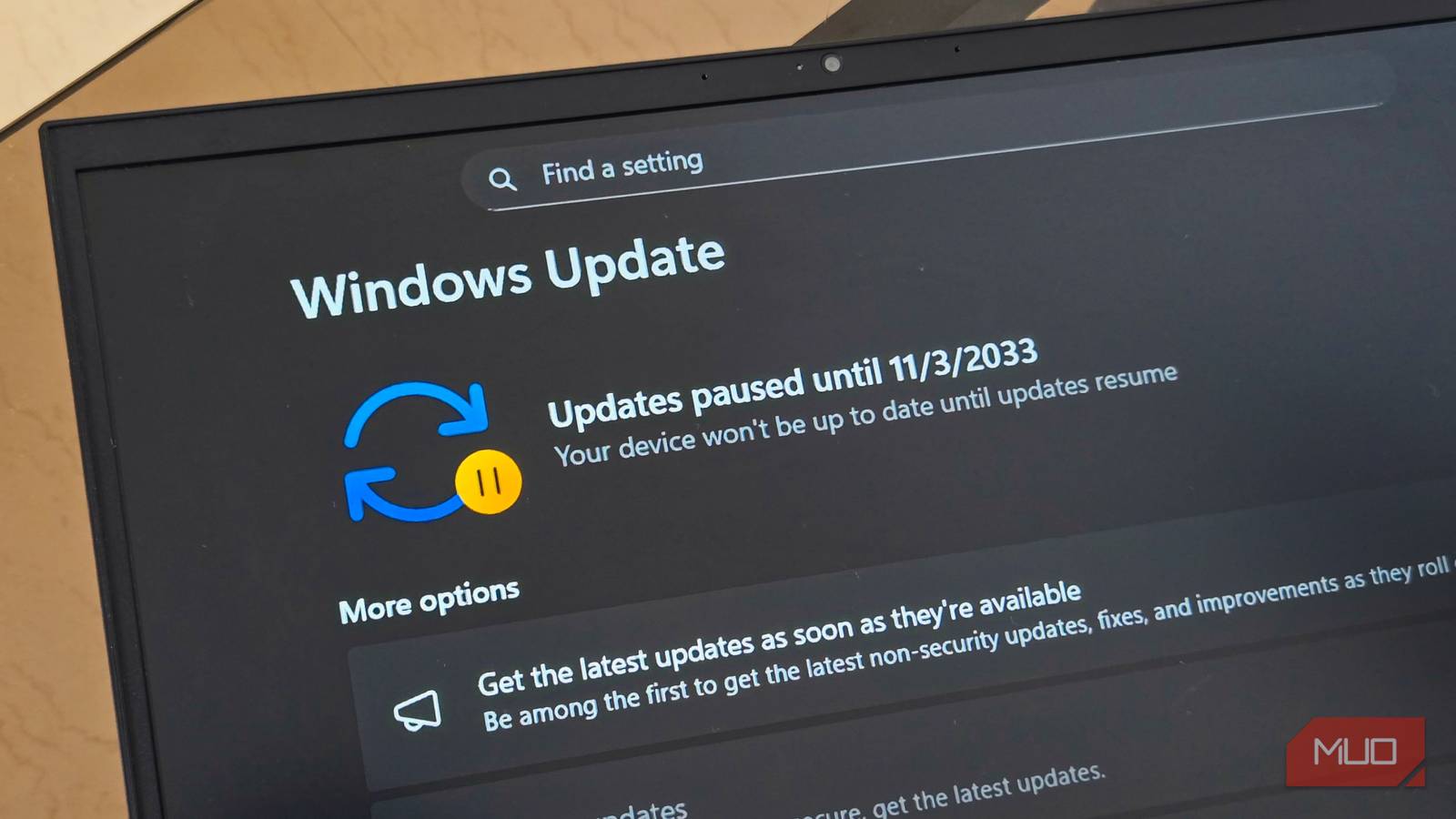
The pause option isn’t much better. You can only pause updates for five weeks, after which Windows automatically resumes downloads and installs them. It’s a handy short-term fix, but not enough to keep my bandwidth safe when I’m working on a tight deadline.
Fortunately, there's a simple registry trick that lets you stretch the Pause Updates limit far beyond its default 5 weeks. Rather than having to resume updates after 35 days, you can set the pause to any future date—even 2033 if you like. You decide exactly when Windows should download and install updates.
 www.makeuseof.com