


Dimpie (JIGSAW)
Honorary Master
^ Yea, I don't know why they can't just make AI as an optional extra package. Those that need it can download and install.
I have NO need for it.
I have NO need for it.
South Africa’s biggest forum. Discuss, discover, and connect with thousands of members.

Just installed Win 11 on a 5 year old pc. Went quickly with this tool : Generate autounattend.xml files for Windows 10/11
not sure if someone posted it here but it works like a charm, no kuk screens and it automatically creates a local user and installs the version you want and activates as well... Took an hour to install, now I just have to debloat, configure and hope the updates will work.
You can configure the xml file to do exactly what you want with the install.
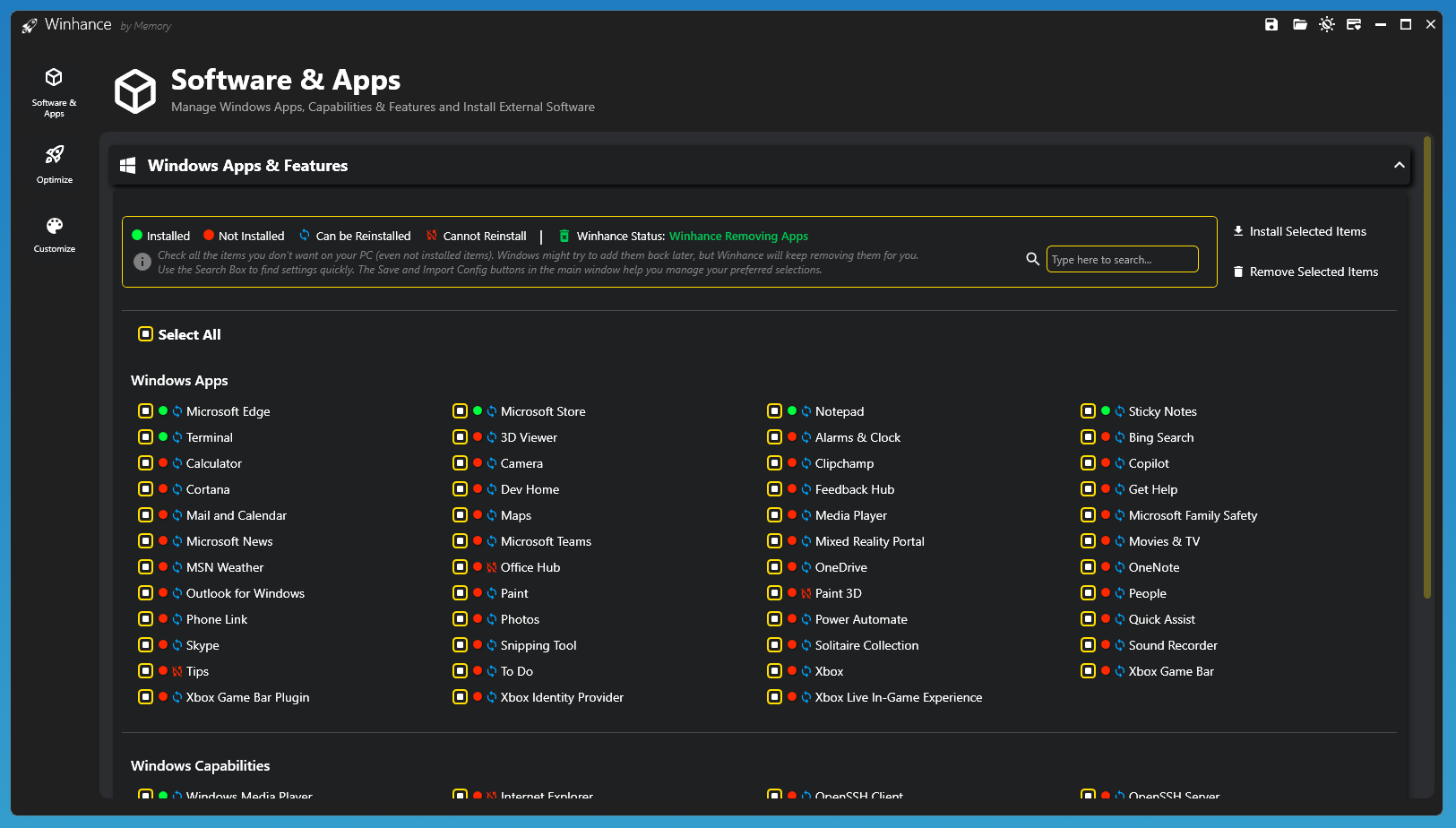
Just installed Win 11 on a 5 year old pc. Went quickly with this tool : Generate autounattend.xml files for Windows 10/11
not sure if someone posted it here but it works like a charm, no kuk screens and it automatically creates a local user and installs the version you want and activates as well... Took an hour to install, now I just have to debloat, configure and hope the updates will work.
You can configure the xml file to do exactly what you want with the install.

Installed Windows 11 25H2 on a 2nd Gen i5 over the weekend. Ran updates and all no issues.
Chris Titus helped me make the ISO & Debloat.
Edit: Forgot to mention the ISO gave me
Old School menu, and explorer right click as well as Local Account and all that jazz
Using Sysinternals Auto logon so PC boots to the Desktop so that it can run headless.

That option leaves the password in plain text on regedit that any program/website can grab.

 github.com

Microsoft is working to mitigate an ongoing incident that has been blocking users in Europe from accessing the company's AI-powered Copilot digital assistant.
Additionally, some users who can access the affected service may experience degraded functionality with specific features.
"We're investigating an issue in which users in the United Kingdom may be unable to access Microsoft Copilot, or experience degraded functionality with some features," Microsoft said when it acknowledged the issue one hour ago.
After reviewing service monitoring telemetry to isolate the root cause of the outage, Microsoft added that the incident was caused by a capacity scaling issue that is now being addressed.
"Indications from service monitoring telemetry suggest an unexpected increase in traffic has resulted in impact. We're continuing to investigate further to determine the next steps required," Microsoft said.
"We've identified an issue impacting service autoscaling to meet demand. We're manually scaling capacity to improve service availability, and we're monitoring this closely to ensure the expected outcome is achieved."
According to a service alert (CP1193544) seen by BleepingComputer, the outage may impact any user attempting to access Microsoft Copilot within the United Kingdom or Europe.
Microsoft is also tracking a separate incident (DZ1193516) causing some admins to experience errors when accessing Microsoft Defender for Endpoint features, including device inventory and threat analytics. While it has yet to share how many users are affected, the issue has been tagged as an incident in the admin center, a flag usually designating service problems with significant user impact.
One week ago, Microsoft also mitigated an outage that blocked access to some Defender XDR portal capabilities, including threat hunting alerts.
Update December 09, 07:54 EST: Microsoft has identified a separate issue behind the Copilot incident that is causing load-balancing problems and further adding to the overall impact.
"We’ve identified a separate issue affecting load balancing, which is also contributing to the overall impact. We’re making changes to our load balancing rules to provide relief. In parallel, we're continuing to work on increasing capacity to meet demand," Microsoft said.



 www.windowslatest.com
^ Yea, I don't know why they can't just make AI as an optional extra package. Those that need it can download and install.
I have NO need for it.
Internet Explorer (or should that be 'Exploder'?) has entered the chat...Because they know if they make it optional people won't use it. Better to force you to like it, don't worry you will get use to it. Learn to love it.


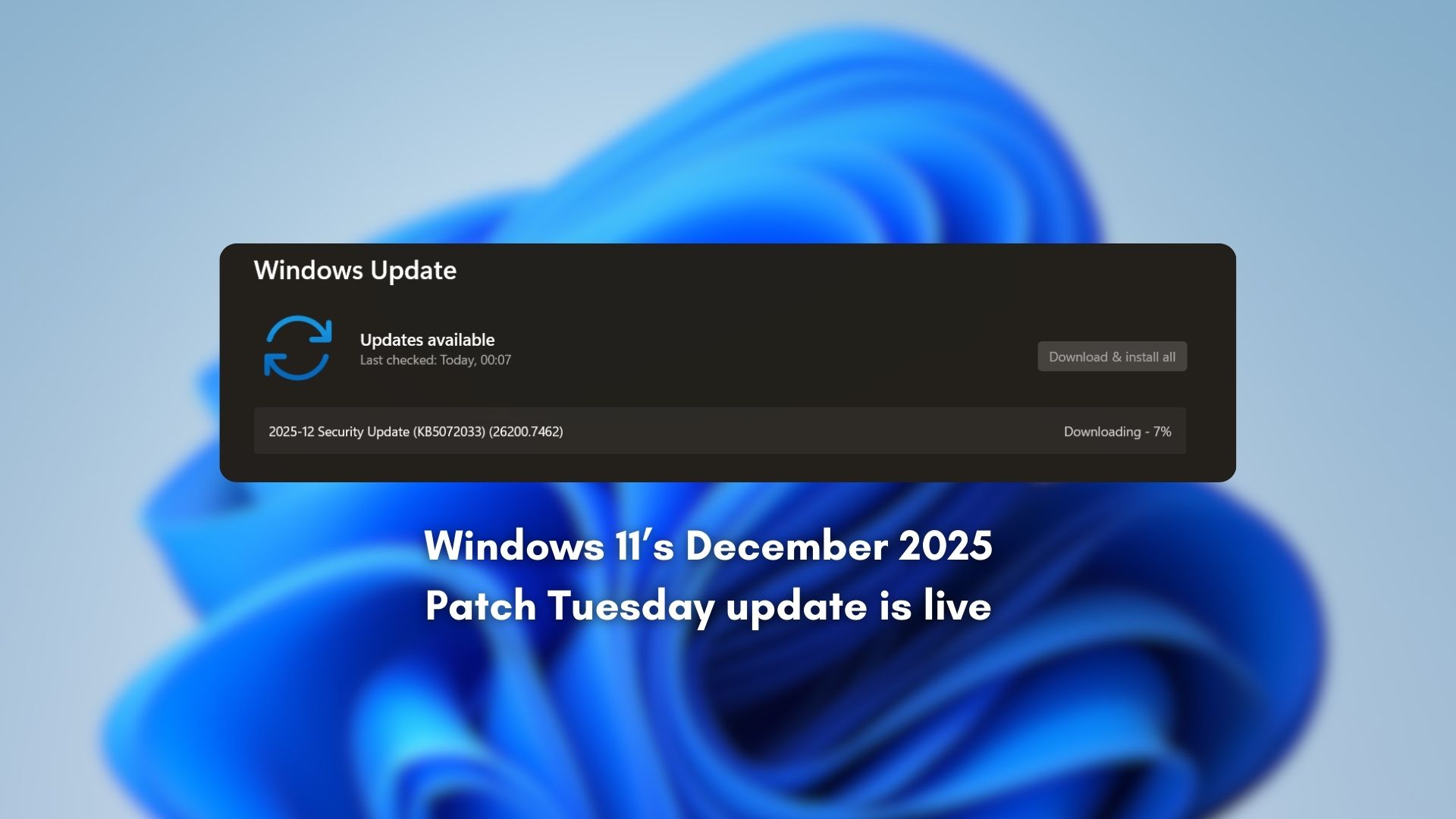
Windows 11 KB5072033 is now available for Windows 11 25H2 or 24H2, and it’s the last update for the year 2025, as Microsoft developers will be on holiday. This means fewer issues for everyone. Regardless, the update brings better dark mode support and some other fixes. Microsoft has posted direct download links for the KB5072033 offline installer.
KB5072033 is a mandatory December 2025 Patch Tuesday update, and it is titled “2025-12 Security Update (KB5072033) (26200.7462). In our tests, Windows Latest observed that the update automatically begins downloading when Windows periodically checks for updates.
This update advances Windows 11 25H2 to Build 26200.7462. In the case of Windows 11 24H2, it brings up Build 26100.7462. As I mentioned, there are quite a few noteworthy changes, particularly for gamers, as Microsoft has patched long-standing problems haunting AMD GPUs.
 www.windowslatest.com


Update just went live today
 for the rest of us.


Windows 11 December 2025 Update has been released, and it has something new for everyone. Based on our testing, we can say that it’s a big one.
This month’s update (KB5072033) has everything from previous releases, so it sums up all Windows 11’s 2025 updates. But all the changes are rolling out gradually. This means the features would not show up immediately.
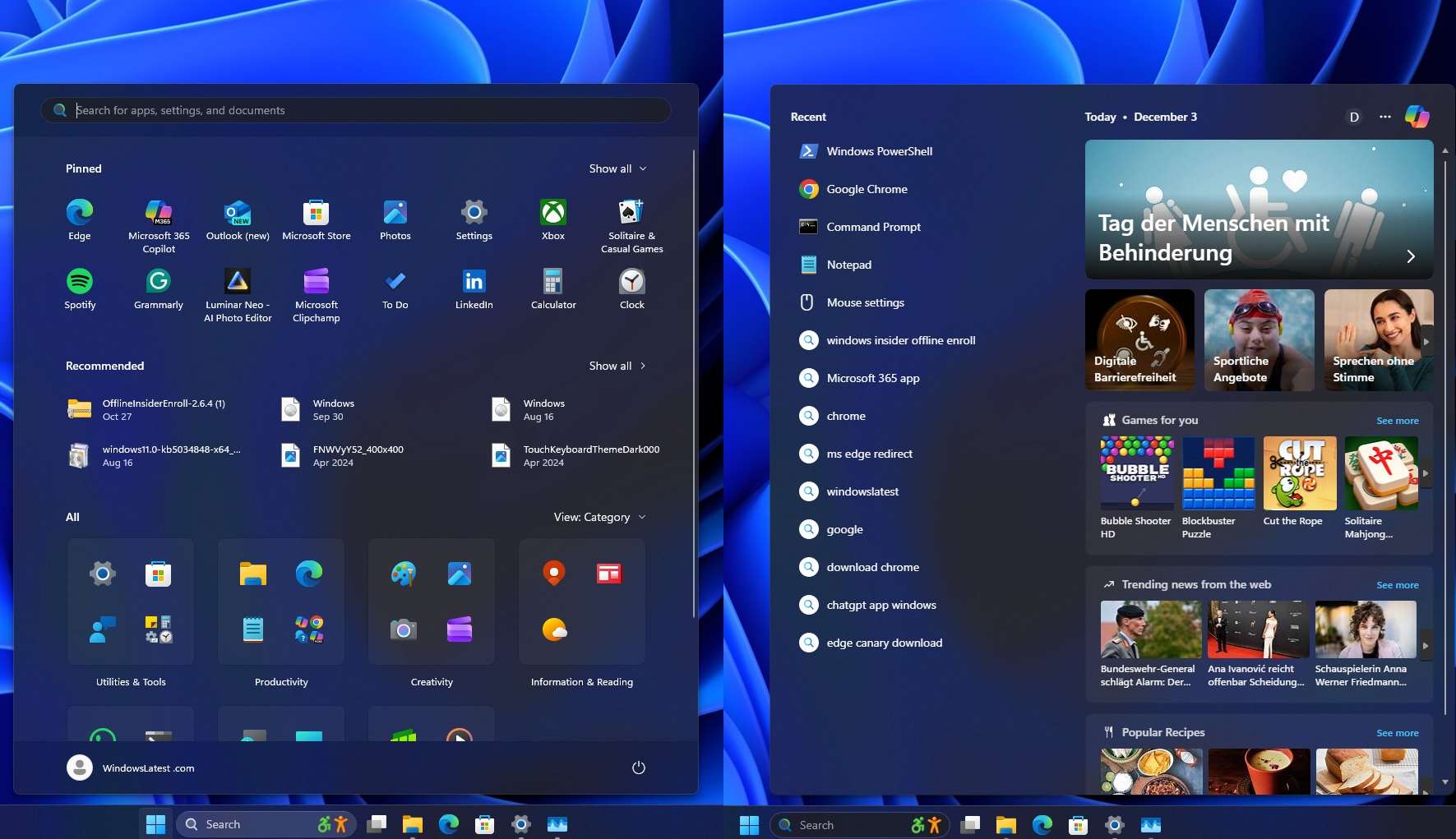
If you’re lucky, you will get a refreshed File Explorer experience, some Start menu refinements, and improvements across Settings, gaming, and overall system reliability. Copilot+PCs get their fair share of improvements as well. Microsoft also shipped a fix for the “Unsupported graphics card detected” error that affected certain games.
What’s new in the Windows 11 December 2025 Update
Here is a list of all the biggest improvements after installing the Microsoft December 2025 Patch Tuesday update:
- File Explorer finally gets a complete dark mode overhaul with dark dialogue boxes, progress bar, and confirmation prompts.
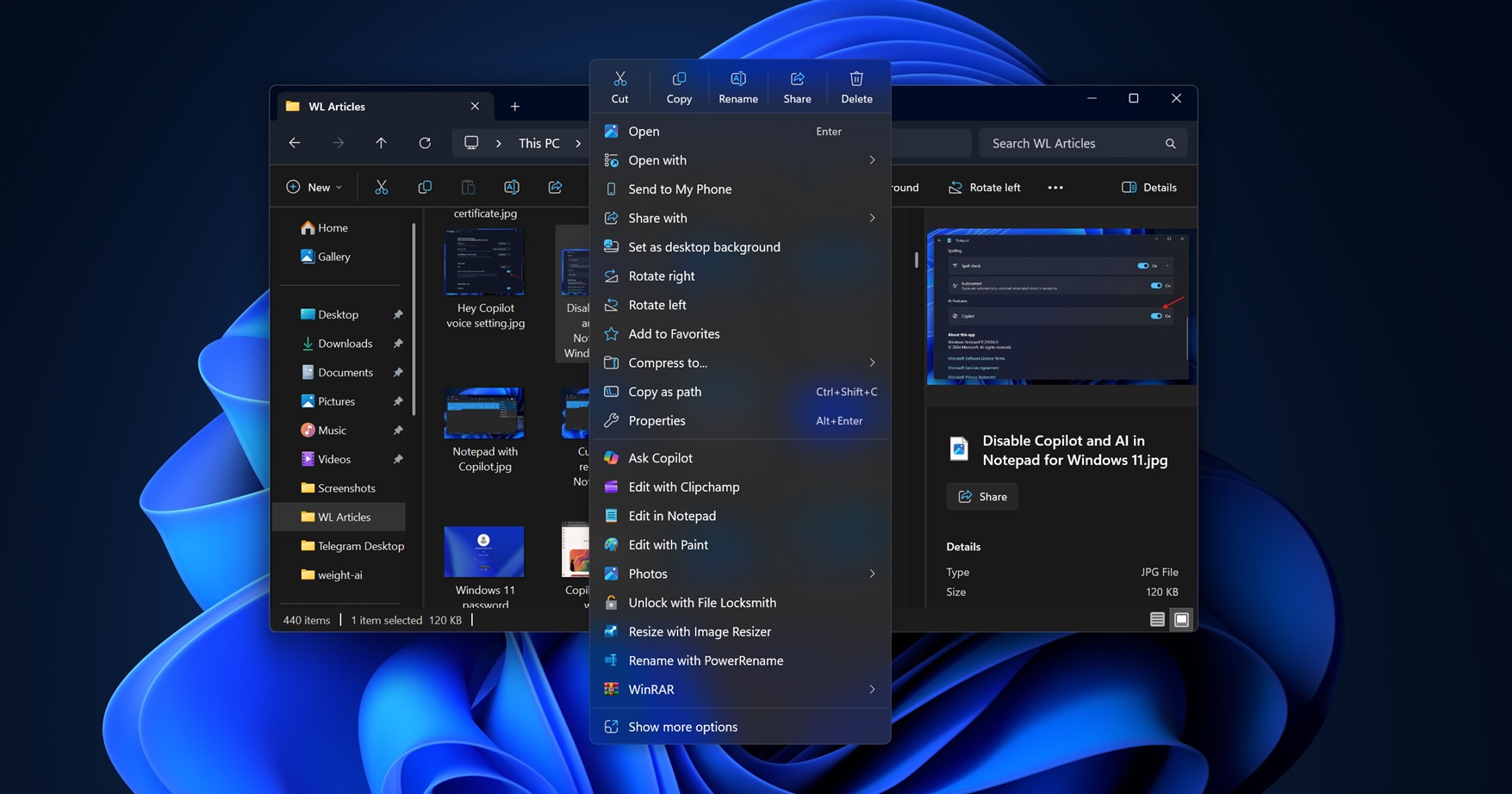
- The context menu in File Explorer is getting more compact by rearranging and grouping similar actions.
- The Settings app gets UI updates, with a redesigned About page and relocated keyboard and cursor settings that were previously found in Control Panel.
- You can now turn on Virtual Workspaces by going to Settings > Systems > Advanced.
- Widgets receive dashboard badges, cleaner navigation, and support for selecting a default dashboard.
- Xbox Full Screen Experience reaches more Windows handhelds.
- Display and graphics improvements include a fix for games incorrectly showing “Unsupported graphics card detected.”
- HID keyboard backlight performance and responsiveness show noticeable upgrades.
- The Mobile Devices page in Settings now lets you manage connected phones more easily.
- System-wide performance improves in areas like search, multitasking, high-resolution display mode queries, and brightness adjustment on all-in-one PCs.
- Copilot+ PCs receive new Agent-in-Settings improvements and a redesigned Click to Do context menu.
- Windows Studio Effects now works on external USB webcams and secondary laptop cameras.
 www.windowslatest.com