


-
- News
-
Categories
- 5G
- ADSL
- AI
- Banking
- Black Friday
- Broadband
- Broadcasting
- Business
- Business Telecoms
- Cellular
- Cloud and Hosting
- Columns
- Cryptocurrency
- Energy
- Enterprise
- Fibre
- Gadgets
- Gaming
- Government
- Hardware
- Industry News
- Internet
- Internet of Things
- Investing
- IT Services
- Motoring
- Reviews
- Science
- Security
- Smartphones
- Software
- Technology
- Telecoms
- Trending
- Wireless
- Press Office
- Forum
- Industry News
- What's Next
- Company hub
- Speed Test
- About us
- Advertise with us
- Contact
- Careers
-
Join the MyBroadband community
South Africa’s biggest forum. Discuss, discover, and connect with thousands of members.
You are using an out of date browser. It may not display this or other websites correctly.
You should upgrade or use an alternative browser.
You should upgrade or use an alternative browser.
Windows 11 Support Thread
- Thread starter UrBaN963
- Start date


The Voice
Honorary Master
After an upgrade, Win11 Windows Defender makes my work laptop sound like a Boeing. Makes it run so hot it’s impossible to touch. And here’s the kicker: Defender is disabled. New Win11 machine they sent me is OK (so far).
Being prompted to upgrade on my home PC, but will need to be a clean install, but because of all the **** going on with Win11, it may be time to go Mac.
Being prompted to upgrade on my home PC, but will need to be a clean install, but because of all the **** going on with Win11, it may be time to go Mac.

FiestaST
Honorary Master

Dimpie (JIGSAW)
Honorary Master
^ I dont have any machines running W10 to check for you 

Why don't I get the option to upgrade to Win 11 anymore? I still get the usual security updates for Win 10. Is it hidden somewhere or do I have to manually upgrade?
Is your TPM enabled?
Did you perhaps set a GPO to exclude windows 11 update?

SHL
Executive Member
- Joined
- Dec 17, 2012
- Messages
- 6,521
- Reaction score
- 11,697
Would I find that under windows services? If not, how do I go about enabling it?Is your TPM enabled?
Did you perhaps set a GPO to exclude windows 11 update?
Would I find that under windows services? If not, how do I go about enabling it?
Windows key + R, TPM.msc and press enter, if it says its detected and working then its not that.
May as well just download a W11 ISO and upgrade it from that.
SHL
Executive Member
- Joined
- Dec 17, 2012
- Messages
- 6,521
- Reaction score
- 11,697
Windows key + R, TPM.msc and press enter, if it says its detected and working then its not that.
May as well just download a W11 ISO and upgrade it from that.

Dave
Honorary Master

HAL 9000
Honorary Master
- Joined
- May 27, 2008
- Messages
- 22,695
- Reaction score
- 26,534
Do what I did yesterday to upgrade my Windows 10 Pro laptop (Intel i3 5th Gen CPU) that I bought in 2015...:
AI Overview
To use Rufus for a Windows 11 installation, download the latest Windows 11 ISO file from Microsoft and the Rufus tool from Rufus, then run Rufus, insert an 8GB+ USB drive, select the Windows 11 ISO and the appropriate partition scheme (GPT), and click "Start" to create the bootable drive.
The process will erase the USB drive and create the installation files, which you can then use to boot your computer and install Windows 11.
Step-by-Step Guide

It's now busy installing the 2025-09 Cumulative Update Preview for Windows 11 25H2 (KB5065789)...

AI Overview
To use Rufus for a Windows 11 installation, download the latest Windows 11 ISO file from Microsoft and the Rufus tool from Rufus, then run Rufus, insert an 8GB+ USB drive, select the Windows 11 ISO and the appropriate partition scheme (GPT), and click "Start" to create the bootable drive.
The process will erase the USB drive and create the installation files, which you can then use to boot your computer and install Windows 11.
Step-by-Step Guide
- Download files: Go to the official Microsoft download page to download the Windows 11 ISO file. Then, download the latest version of Rufus from the official Rufus website.
- Connect USB drive: Insert a USB drive with at least 8GB of storage into your computer.
- Launch Rufus: Run the Rufus application. It doesn't require installation.
- Select USB drive: In Rufus, select the correct USB drive from the "Device" dropdown menu.
- Select ISO file: Under "Boot selection," choose "Disk or ISO image," then click the "Select" button to browse for and select your downloaded Windows 11 ISO file.
- Choose partition scheme: For a standard Windows installation, use the default "Windows standard installation" in the "Image option" section. Then, select the correct partition scheme for your PC (usually GPT for modern computers).
- Start the process: Click the "Start" button.
- Customize options (Optional): Rufus may present a "Windows user experience" window offering options to remove Windows 11 hardware requirements (like TPM 2.0 and Secure Boot) or to bypass the Microsoft account requirement, which you can customize.
- Confirm data loss: A warning will appear, confirming that all data on the USB drive will be erased. Double-check that you have selected the correct USB drive.
- Wait for completion: Click "OK" to start the process. Rufus will format the USB drive and copy the Windows 11 installation files. When it displays "Ready," the bootable USB drive is complete.
- Install Windows 11: Reboot your computer and select the USB drive as your boot device (or just navigate to the USB drive & double-click the setup.exe file whilst you are still in Windows 10) to start the Windows 11 installation process.
It's now busy installing the 2025-09 Cumulative Update Preview for Windows 11 25H2 (KB5065789)...
Last edited:

S_L_Y_G_U_Y
Executive Member
- Joined
- Jun 4, 2022
- Messages
- 6,368
- Reaction score
- 6,300
so will this work for me ?

HAL 9000
Honorary Master
- Joined
- May 27, 2008
- Messages
- 22,695
- Reaction score
- 26,534
Try the procedure I detailed above using a USB drive, Rufus & a Win 11 25H2 ISO and see if it works for you, just as it did for me yesterday...
S_L_Y_G_U_Y
Executive Member
- Joined
- Jun 4, 2022
- Messages
- 6,368
- Reaction score
- 6,300
what a freakin mission I will wait and follow you in this thread and see what problems you run into with your installTry the procedure I detailed above using a USB drive, Rufus & a Win 11 25H2 ISO and see if it works for you, just as it did for me yesterday...
Just note, it may run like ass on W11.
HAL 9000
Honorary Master
- Joined
- May 27, 2008
- Messages
- 22,695
- Reaction score
- 26,534
All good here so far - the Cumulative Update installed successfully - to improve the startup speed, a handy tip is to enable the 'Hibernate' option in the Power settings - then use that option instead of a conventional 'Shut Down' command. The boot-up time to the desktop is dramatically reduced - and then once a week (I do it on the weekends) do a conventional "Restart' then, once it has rebooted to the desktop - do a 'Hibernate' again to get it ready for a quick bootup response when you use first it during your work week.
HAL 9000
Honorary Master
- Joined
- May 27, 2008
- Messages
- 22,695
- Reaction score
- 26,534
Current version of Windows 11 Pro 25H2 after the 2025-09 Cumulative Update Preview was installed has incremented from OS build 26200.6584 to 26200.6725...

S_L_Y_G_U_Y
Executive Member
- Joined
- Jun 4, 2022
- Messages
- 6,368
- Reaction score
- 6,300
But can it run Minecraft?

LazyLion
King of de Jungle
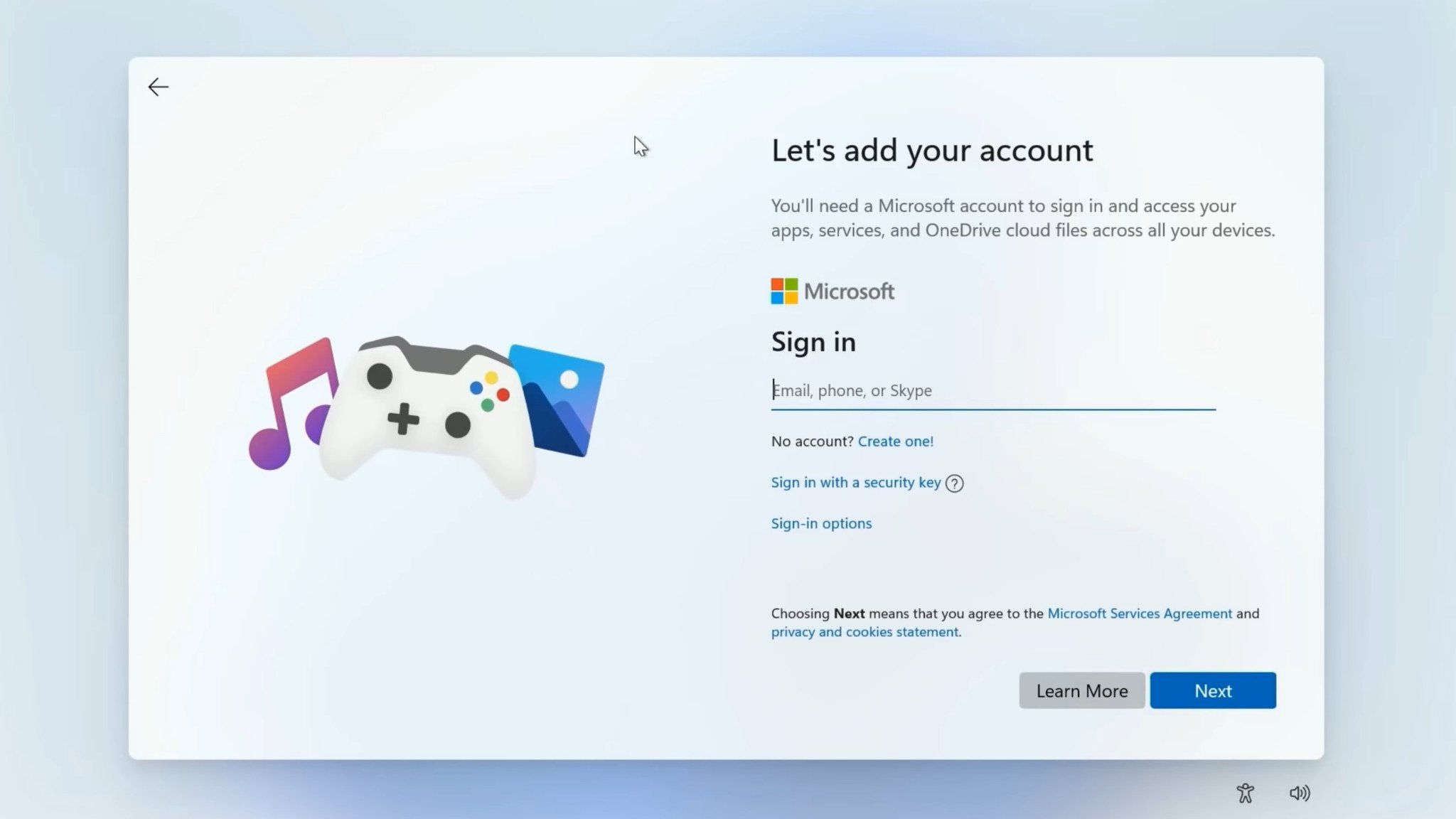
Hate signing in? Windows 11 just made it harder to avoid
Microsoft’s latest update shuts down more offline setup tricks, leaving local‑only fans out in the cold.
 www.windowscentral.com
Dimpie (JIGSAW)
Honorary Master
Hate signing in? Windows 11 just made it harder to avoid
Microsoft’s latest update shuts down more offline setup tricks, leaving local‑only fans out in the cold.
