Do what I did yesterday to upgrade my Windows 10 Pro laptop (Intel i3 5th Gen CPU) that I bought in 2015...:
AI Overview
To use Rufus for a Windows 11 installation, download the latest Windows 11 ISO file from
Microsoft and the Rufus tool from
Rufus, then run Rufus, insert an 8GB+ USB drive, select the Windows 11 ISO and the appropriate partition scheme (GPT), and click "Start" to create the bootable drive.
The process will erase the USB drive and create the installation files, which you can then use to boot your computer and install Windows 11.
Step-by-Step Guide
- Download files: Go to the official Microsoft download page to download the Windows 11 ISO file. Then, download the latest version of Rufus from the official Rufus website.
- Connect USB drive: Insert a USB drive with at least 8GB of storage into your computer.
- Launch Rufus: Run the Rufus application. It doesn't require installation.
- Select USB drive: In Rufus, select the correct USB drive from the "Device" dropdown menu.
- Select ISO file: Under "Boot selection," choose "Disk or ISO image," then click the "Select" button to browse for and select your downloaded Windows 11 ISO file.
- Choose partition scheme: For a standard Windows installation, use the default "Windows standard installation" in the "Image option" section. Then, select the correct partition scheme for your PC (usually GPT for modern computers).
- Start the process: Click the "Start" button.
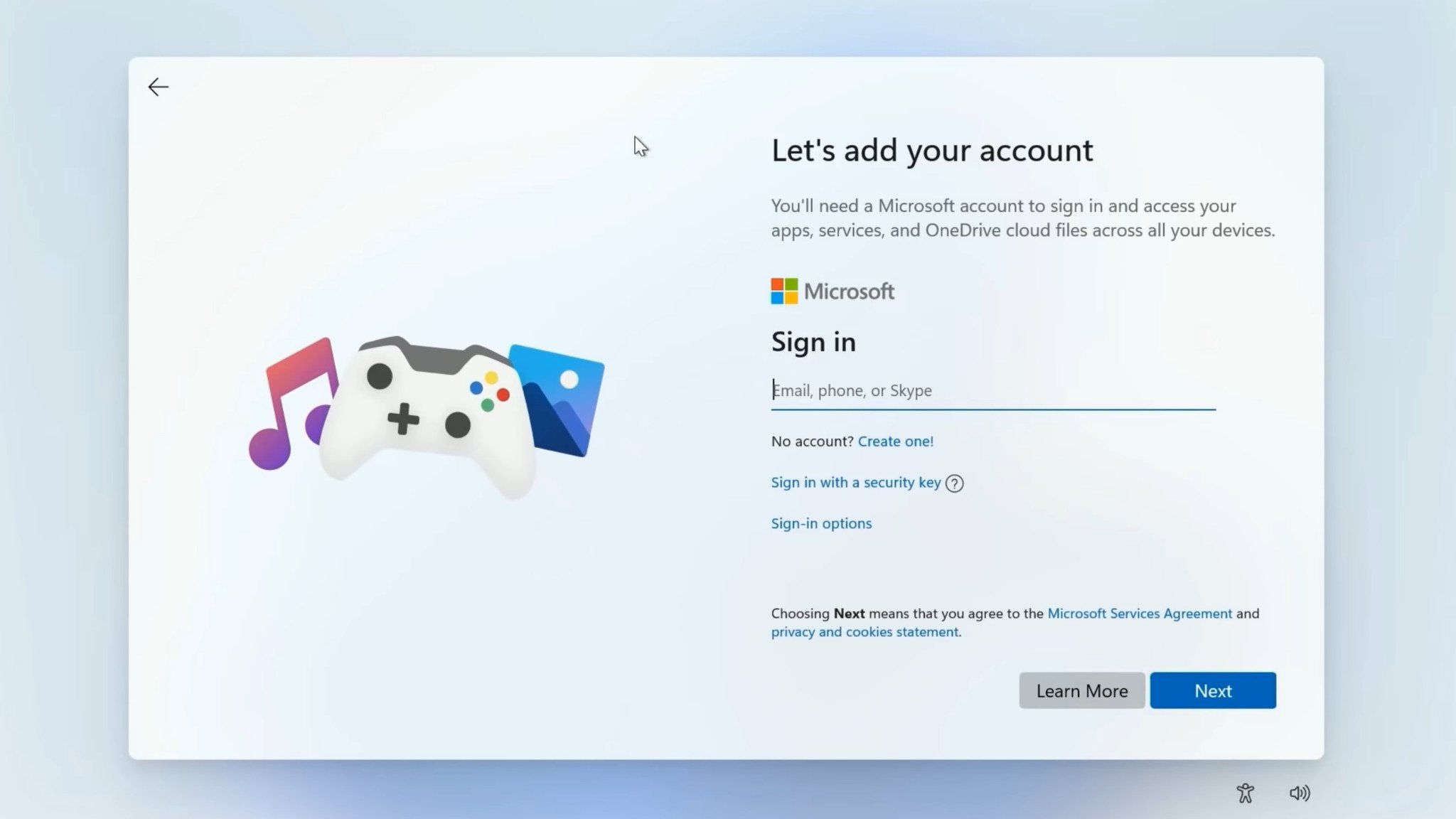
- Customize options (Optional): Rufus may present a "Windows user experience" window offering options to remove Windows 11 hardware requirements (like TPM 2.0 and Secure Boot) or to bypass the Microsoft account requirement, which you can customize.
- Confirm data loss: A warning will appear, confirming that all data on the USB drive will be erased. Double-check that you have selected the correct USB drive.
- Wait for completion: Click "OK" to start the process. Rufus will format the USB drive and copy the Windows 11 installation files. When it displays "Ready," the bootable USB drive is complete.
- Install Windows 11: Reboot your computer and select the USB drive as your boot device (or just navigate to the USB drive & double-click the setup.exe file whilst you are still in Windows 10) to start the Windows 11 installation process.
View attachment 1853802
It's now busy installing the 2025-09 Cumulative Update Preview for Windows 11 25H2 (KB5065789)...
 View attachment 1853803